¶ Objects
The objects section is the database that your fitment is referencing. In the automotive industry, this is typically the VCdb but can be manually defined.
¶ Source fitment
Source fitment is where your fitment is defined. This can be imported in from ACES or defined manually.
¶ Search fitment
Search Fitment is what you define as how you want an end user to search your products. For example, in the automotive industry this could be:
- Year, Make, Model
- Year, Make, Model, Submodel
- Year, Make, Model, Submodel, Engine
- Year, Make Model, Submodel, Bed Length
- Etc.
¶ Transformation
Transformation is what your Source Fitment goes through to create your Search Fitment.
¶ Object setup
Object setup is where you can either view the object databases and types that were autogenerated by the VCdb, or where you can manually define these things yourself.
¶ Databases
This is simply where you will name and view your list of databases. If you have not loaded a VCdb, then you will come here first>click New>enter a name for Database>Save.
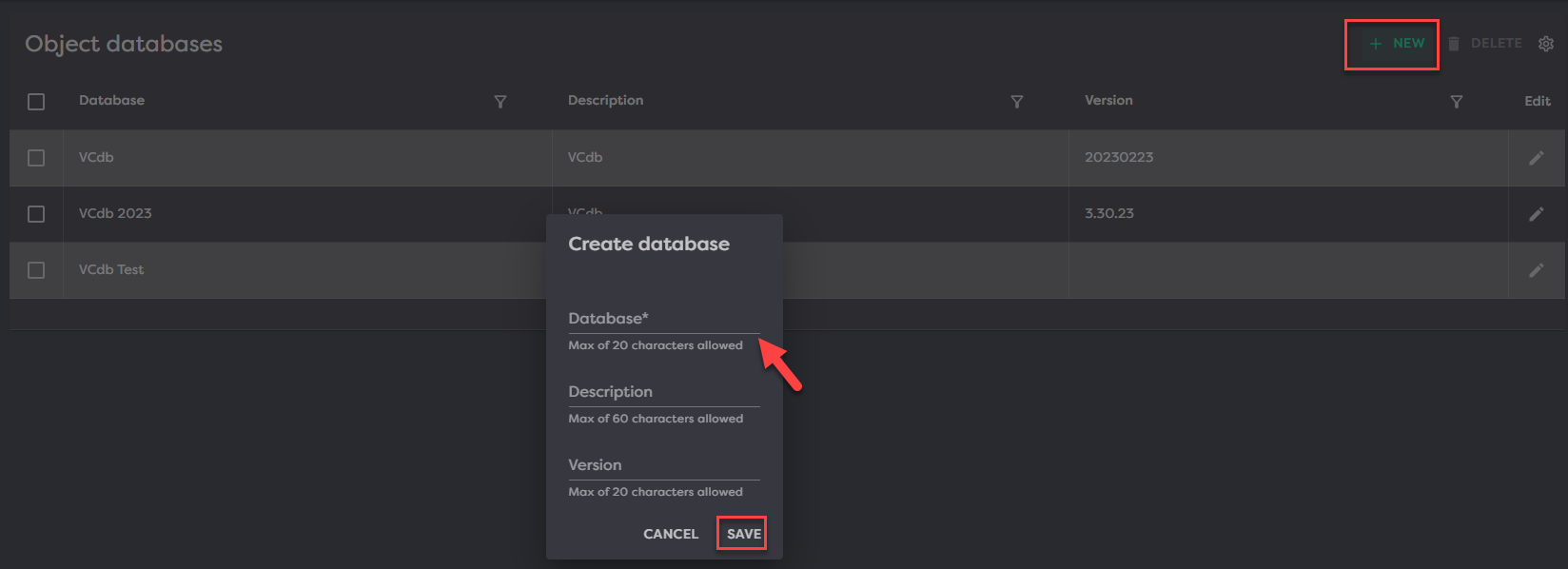
Now that you have created this, you will go to the Import & Export section of Product Desk to import your VCdb.
¶ Types
Types…
¶ Attributes
attributes…
¶ Fitment setup
Product Desk supports both light and dark mode. To switch between the modes simply click the icon in the upper right:
¶ Source fitment types
This asks what the object database is and object type
object type will probably always be vehicle
ACES- importing ACES
Manual - hand rolling fitment
¶ Search fitment definitions
fitment definitions…
¶ Start to finish
For automotive
- Go to Fitment>Object setup>Database and add a name for your database (most likely VCdb if that is what you are importing)
- Import VCdb template > reference VCdb database.
- Go to Fitment>Object setup>Attributes and click Populate Default Setup from Template.
- Go to Fitment>Object setup>Types and click Populate Default Setup from Template.
- Go to Import & Export>Import>New and import your VCdb with the VCdb coded template.
- Once VCdb is staged, commit records.
- Go to Fitment>Fitment setup>Source fitment types to create a type called ACES (assuming you are loading ACES files to generate fitment records)
- Go to Fitment>Fitment setup>Search fitment definitions to create how you want users to search on your site (Year, Make, Model vs. Year, Make,Model, Submode, Etc.)
- Go to Import & Export>Import>New and import your ACES with the ACES coded template.
Once ACES is staged, commit records.
(Importing ACES, want to set that to Brand so that it will delete all ACES Source fitment for that brand and you will only have current ACES records)