¶ Imports and exports
In this section, we will discuss importing and exporting data from within product desk. We will show how to setup import and export templates, how to setup channels for your exports, and how to review data.
¶ Templates
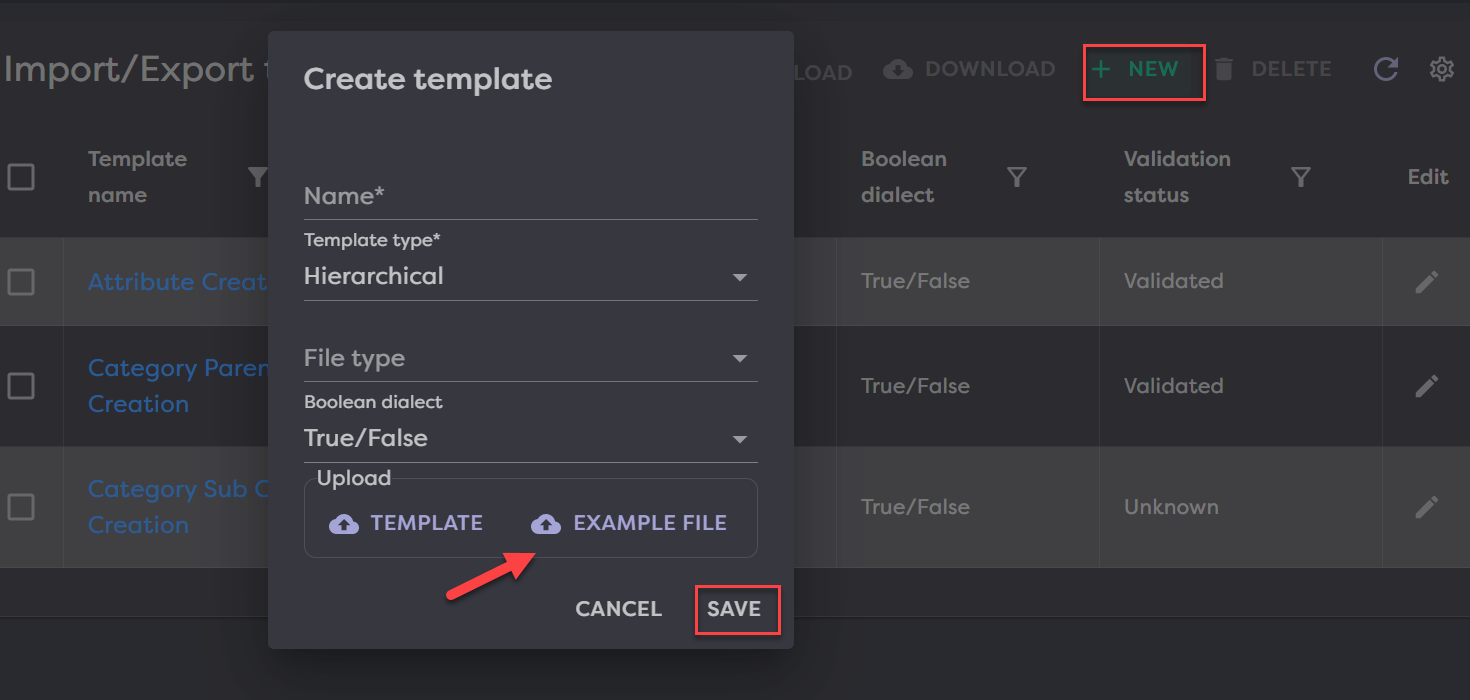
Before importing or exporting data, you must first create a template. Go to Imports & Exports>Templates and click on New in the top right to create your template.
From here, you will have the below fields to complete and then click Save.
- Name (required) - Name the template something descriptive so others know what this template can be used for in the future. Ex. Attribute Creation, PIES, Pricing, etc.
- Template type (required)
- Hierarchical
- Flat
- Coded
- File type (required)
- Boolean dialect (required)
- Upload - Here you can choose to either upload a template or an example file.
- Template: This must be a json file.
- Example File: This should be a small sample of whatever is in your file to import so that the system can pull the data points out for you to map.
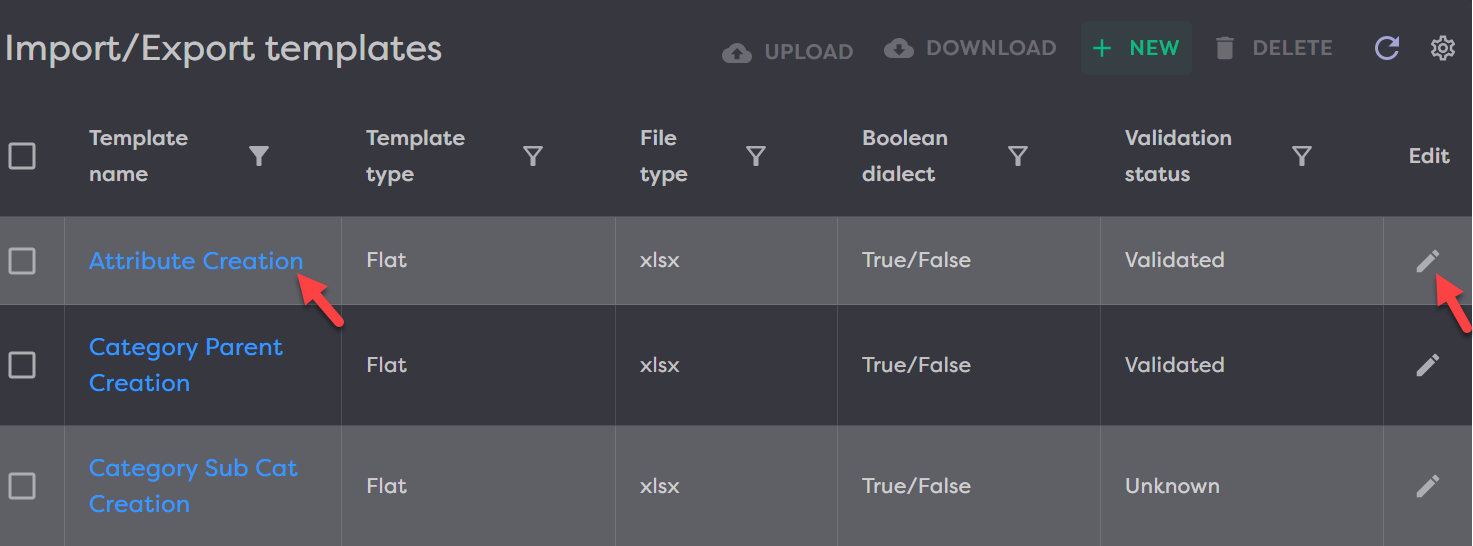
Once you have saved your template, you will see it added to the list and can click on the hyperlinked template name or on the pencil icon on the far right to edit.
How you complete mapping your templates looks different depending on the template type. In this next section, we will review the mapping piece for each type.
¶ Hierarchical Mapping
A hierarchical template mapping means that you have a file with different levels of data. The most common example of this is a PIES file. For this reason, we will look at setting up a PIES template mapping.
PIES is a standard for the automotive industry that categorizes parts information based on a pre-existing database. Some manufacturers will have a more complete data in their PIES than others but for this example, we will look at a robust PIES file.
Start by clicking into your PIES template to edit. Do this by clicking the hyperlinked template name or the pencil icon.

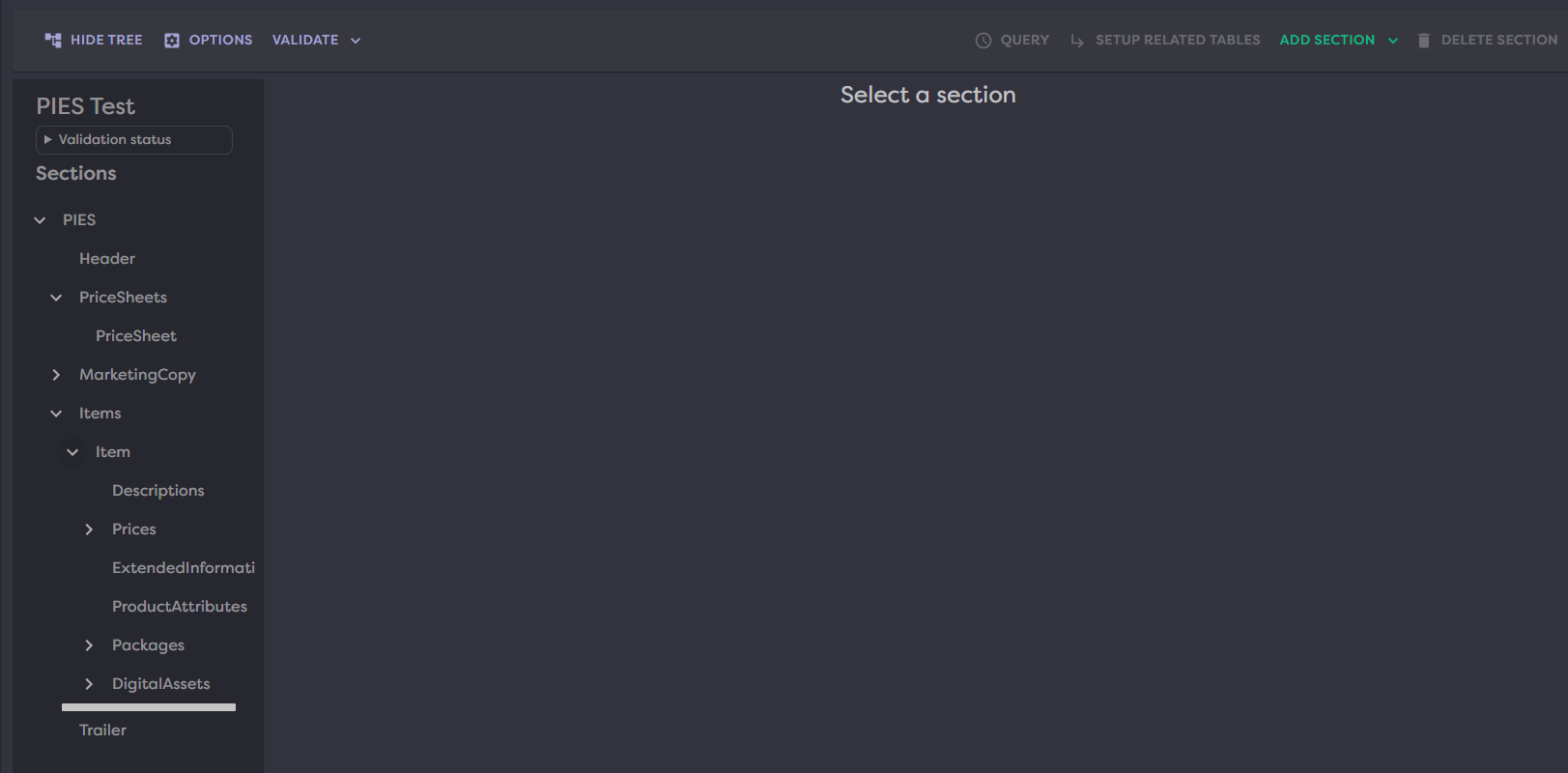
Upon first opening, your screen will look like the below. Start by collapsing the validation box and then expanding each section of the PIES.
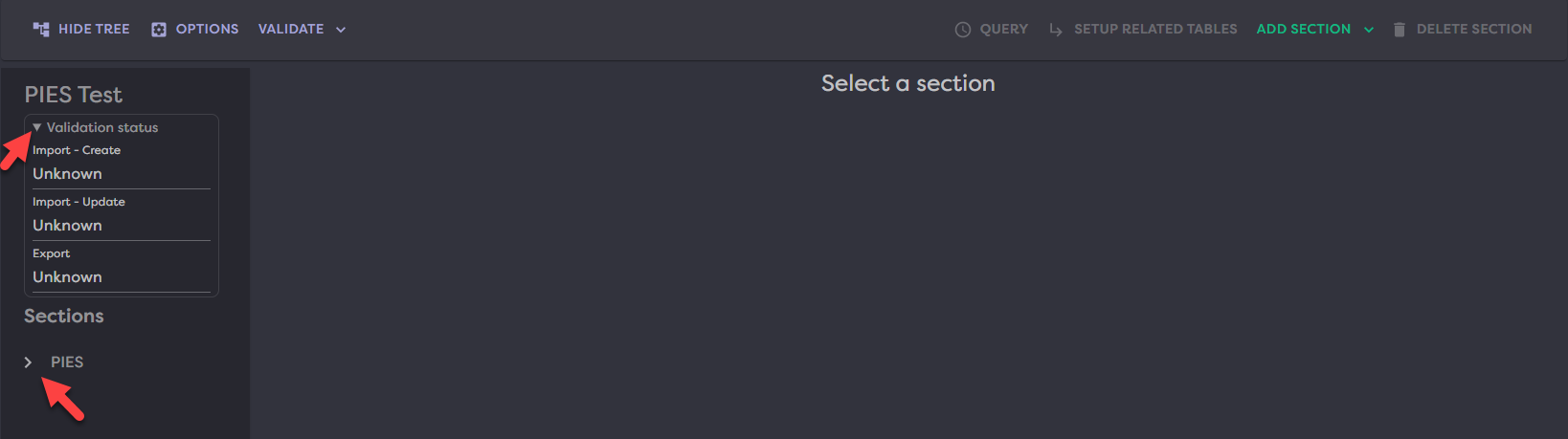
Now, your PIES should look something like this:
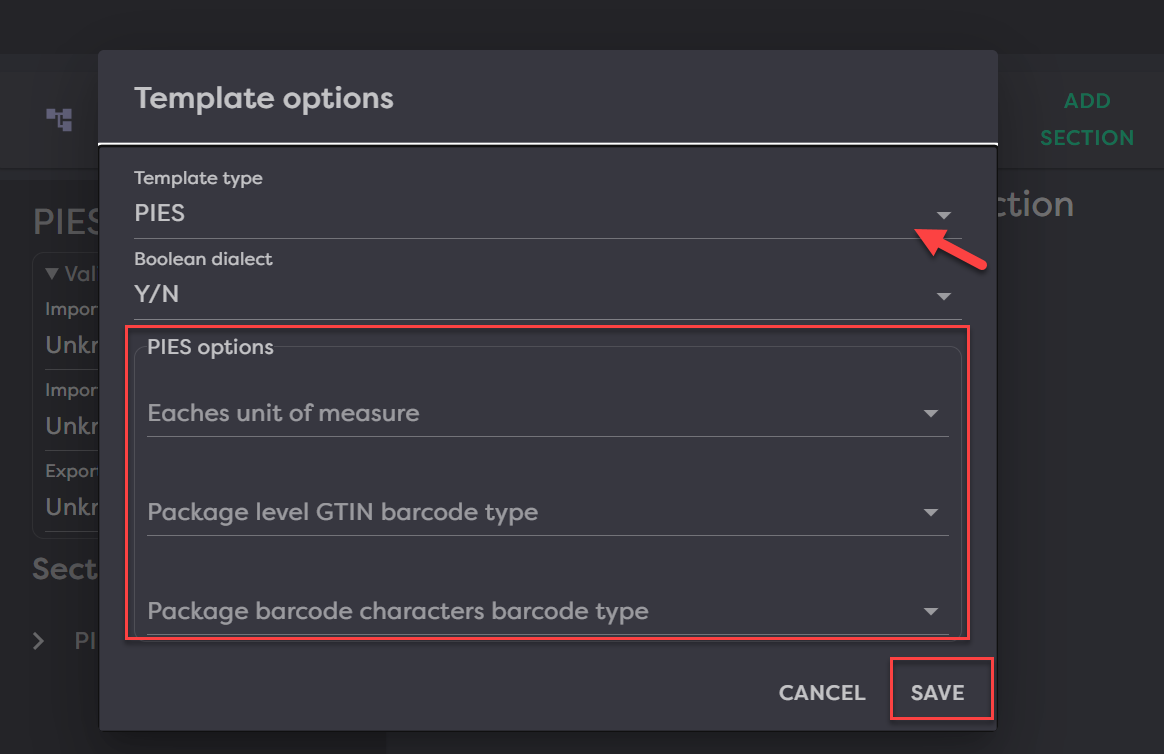
Before mapping each section, first click Options at the top and complete the template options modal. Template type should be PIES and Boolean dialect should already be filled out to match what you selected when creating the template. When template type is PIES, you will have an additional section open for you to map. Fill out these fields as well then hit Save.
Additional PIES fields to complete:
- Eaches Unit of Measure
- Package level GTIN barcode Type
- Package barcode characters barcode type
Now you are ready to start mapping the different sections of your PIES file.
¶ Item
If you compare your PIES file to the Product Desk PIES Template, you will see that each line item in the PIES file has a corresponding line item that can be mapped in the template. You will want to start by setting the table to Product and hitting Save. Then you can begin mapping other fields.
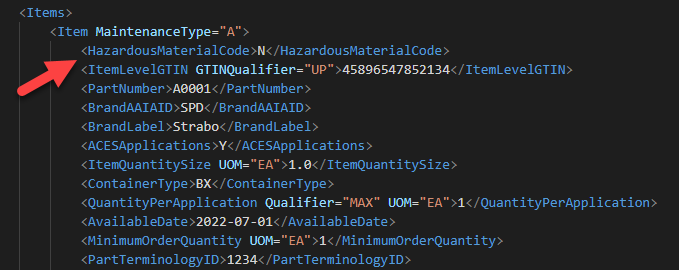
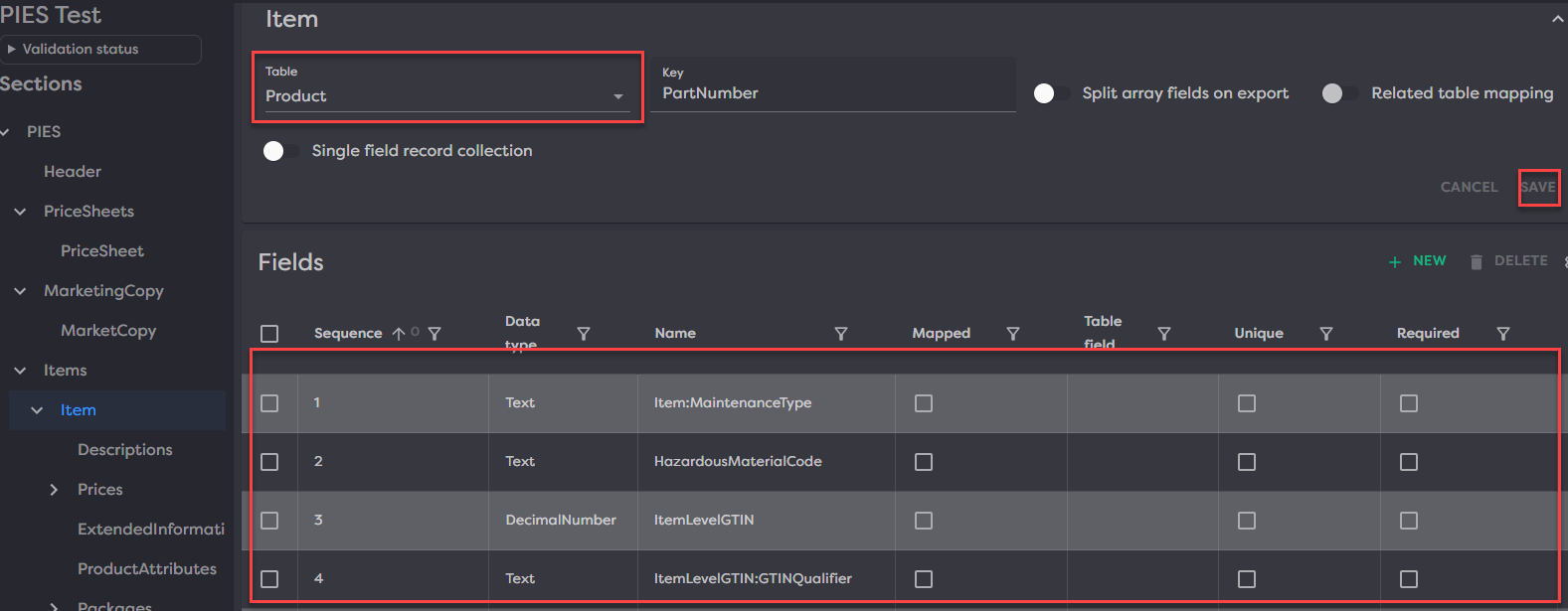
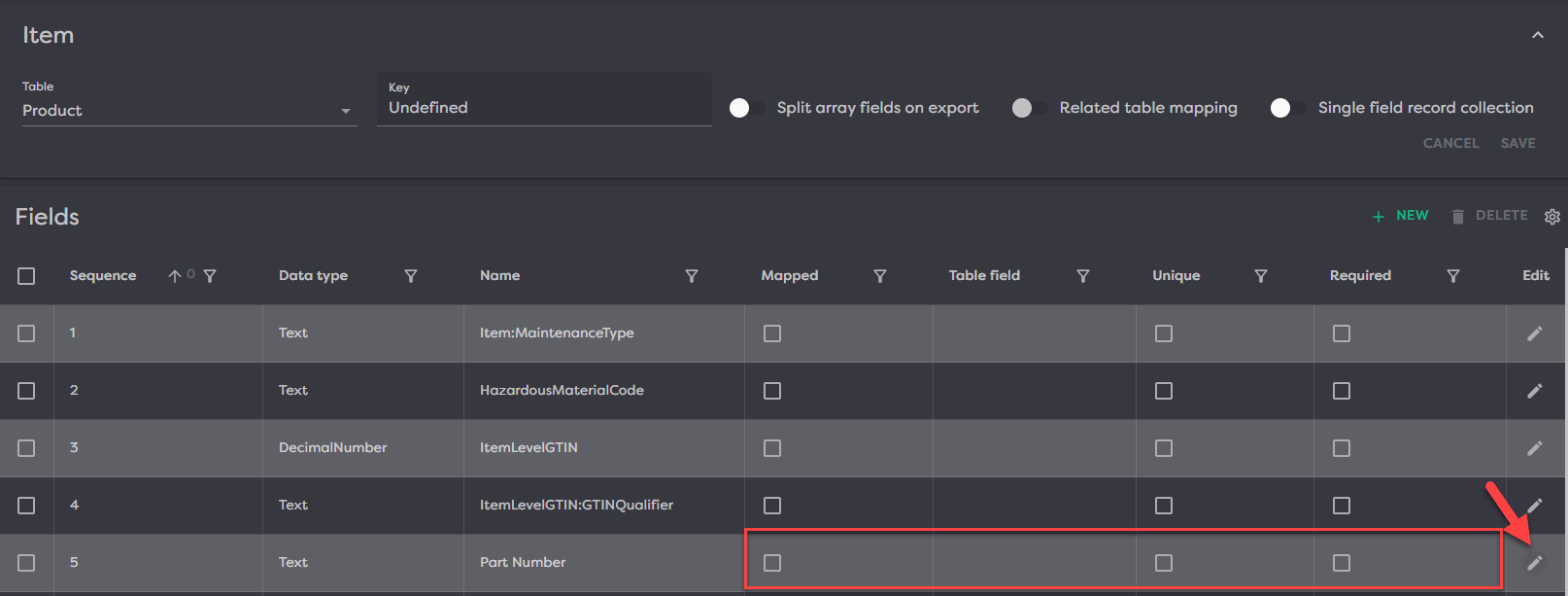
As an example, we will start by mapping our Part Number field. You can tell if a field is mapped or not by looking at the Mapped column and seeing if that box is checked. If it is then you can also check the Table field, Unique and Required columns to see how the field is mapped. Click the pencil icon to edit the mapping.
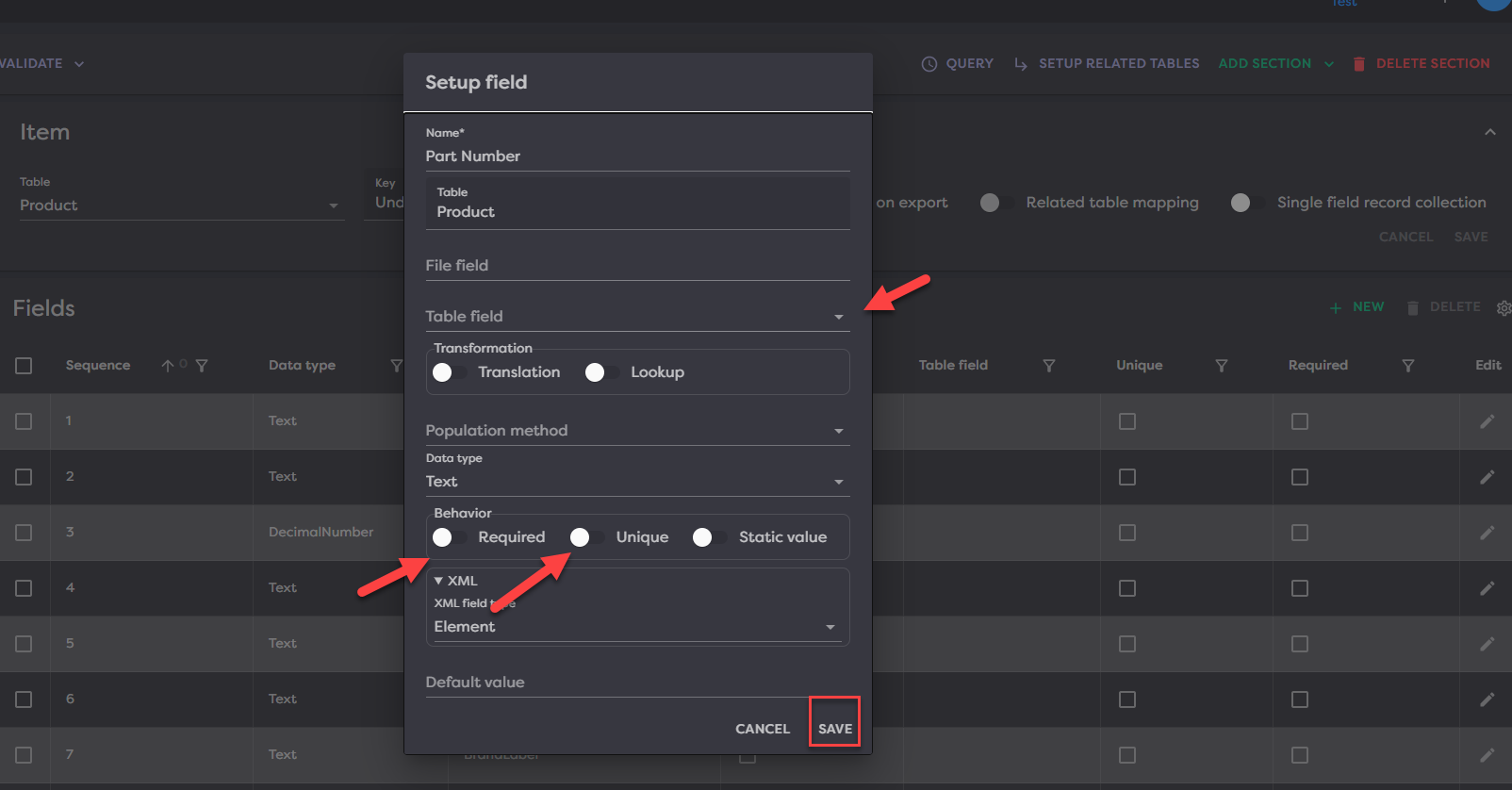
From here, you will want to set the Table and Behavior fields. Since this is the Part Number, we will set the Table Field to Product Number as that is how the Part Number is set up in Product Desk. And since we want to ensure that no products come in from the PIES import unless they have a part number and we want all part numbers to be unique, we will set the behavior to yes for both Required and Unique. This means that if there is an item in the PIES file that does not have a part number then it will not be brought in to Product Desk. And if there is a part number that is listed twice in the PIES, Product Desk will only import the first one it comes across. Click Save to commit these mappings.
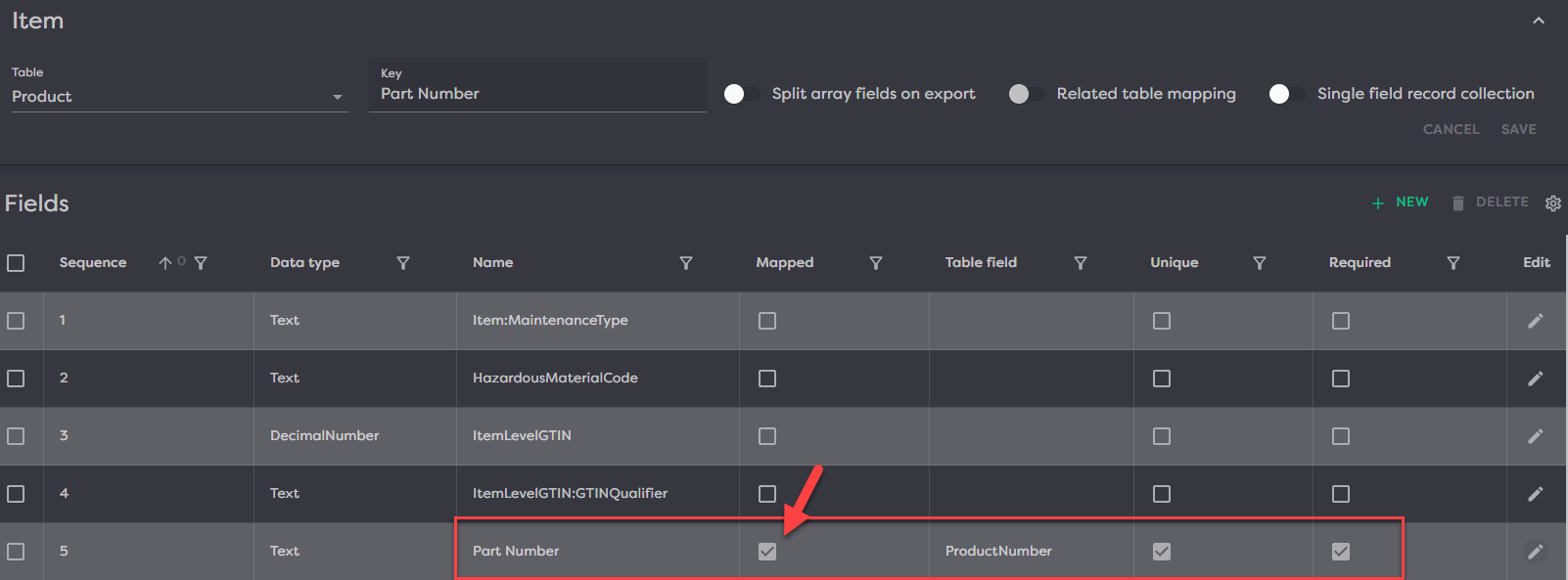
You will now notice that the checkbox for the Mapped column is checked for part Number and we can see the other details we mapped as well.
Continue doing this for all other fields you want to map.
¶ Descriptions
For the Description section, set your Table to Description, then click Save.

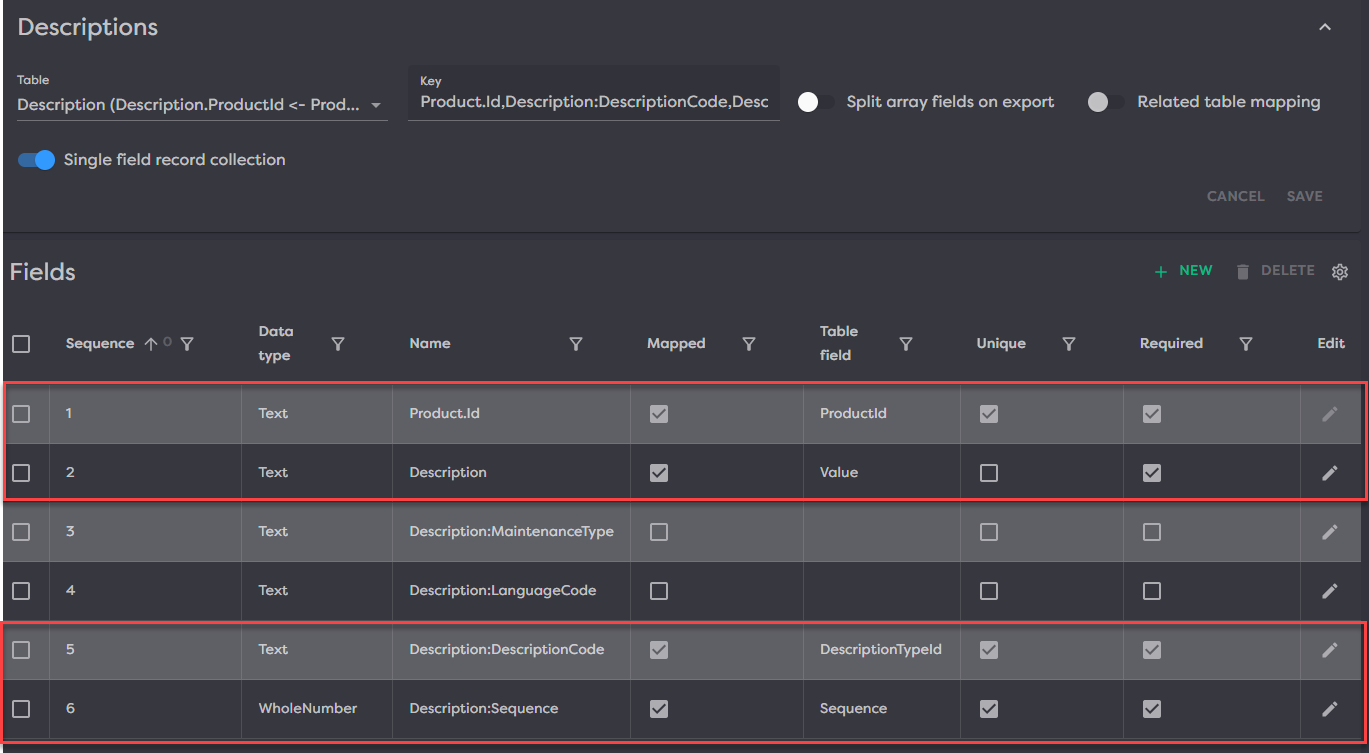
From here, you will want to map (at a minimum), the following fields:
- Description
- Description Code
- Description Sequence
You can see how we have mapped these, below.
¶ Pricing
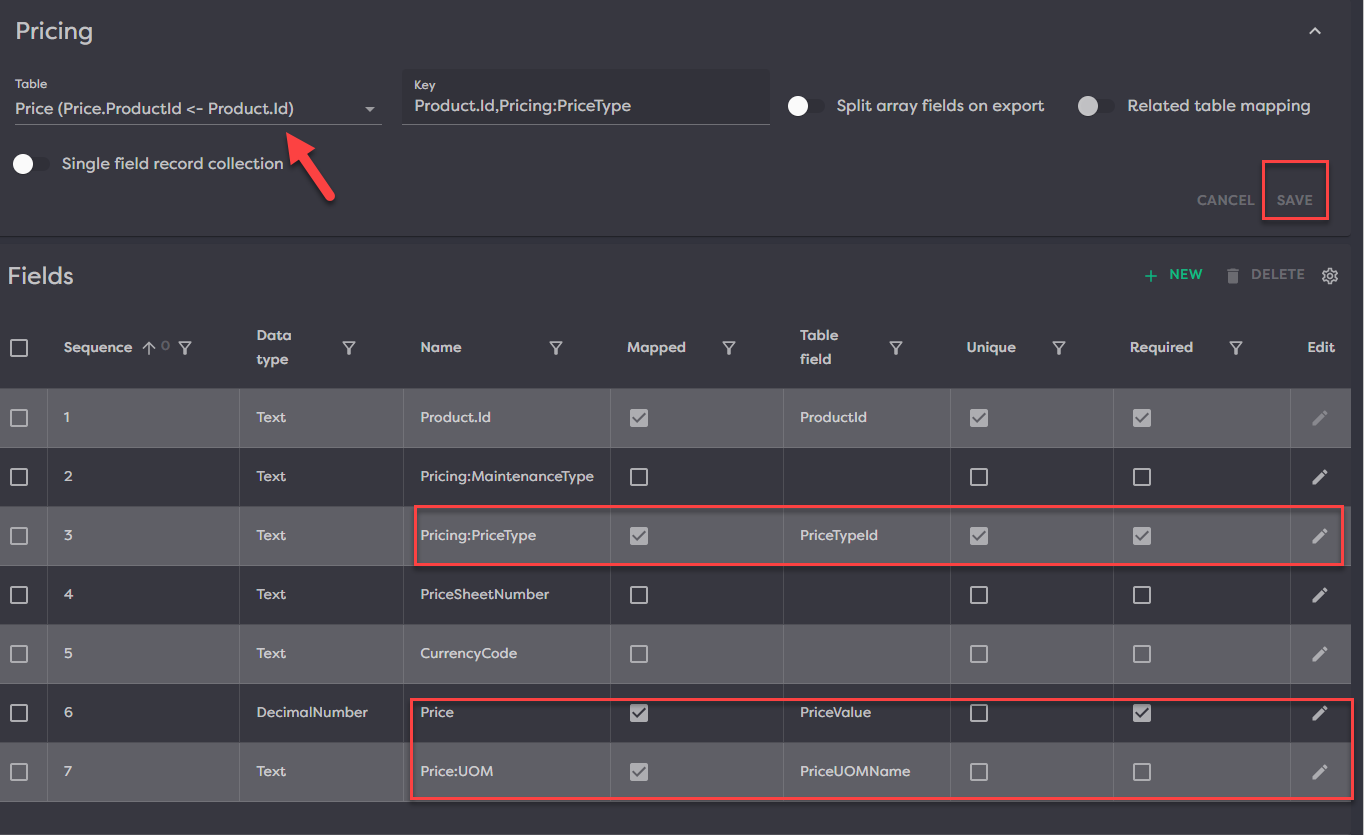
For the Pricing section, set your Table to Pricing, then click Save.
From here, you will want to map (at a minimum), the following fields:
- Price Type
- Price
- Price UOM (Unit of Measure)
You can see how we have mapped these, below.
¶ Product Attributes
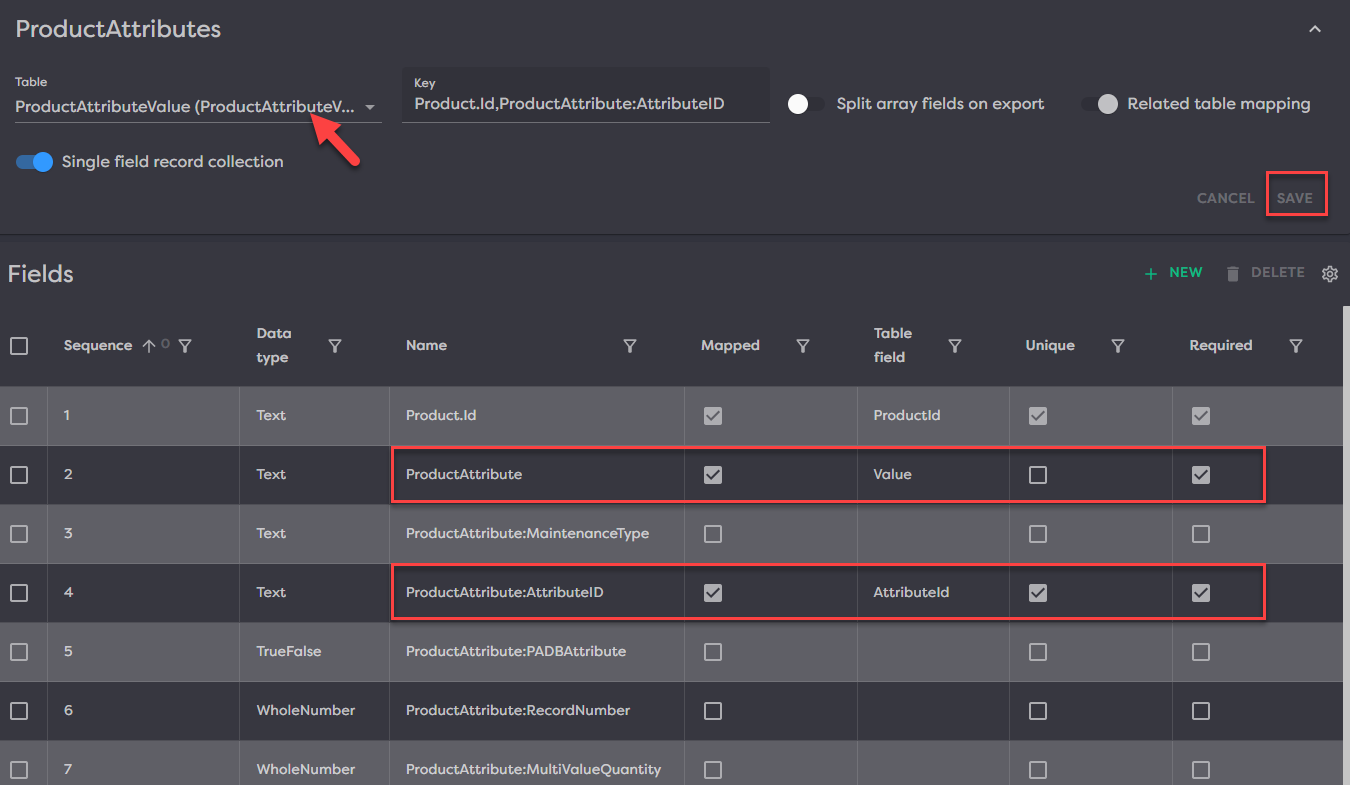
For the Product Attribute section, set your Table to ProductAttributeValue, then click Save.
From here, you will want to map (at a minimum), the following fields:
- Product Attribute
- Product Attribute ID
You can see how we have mapped these, below.
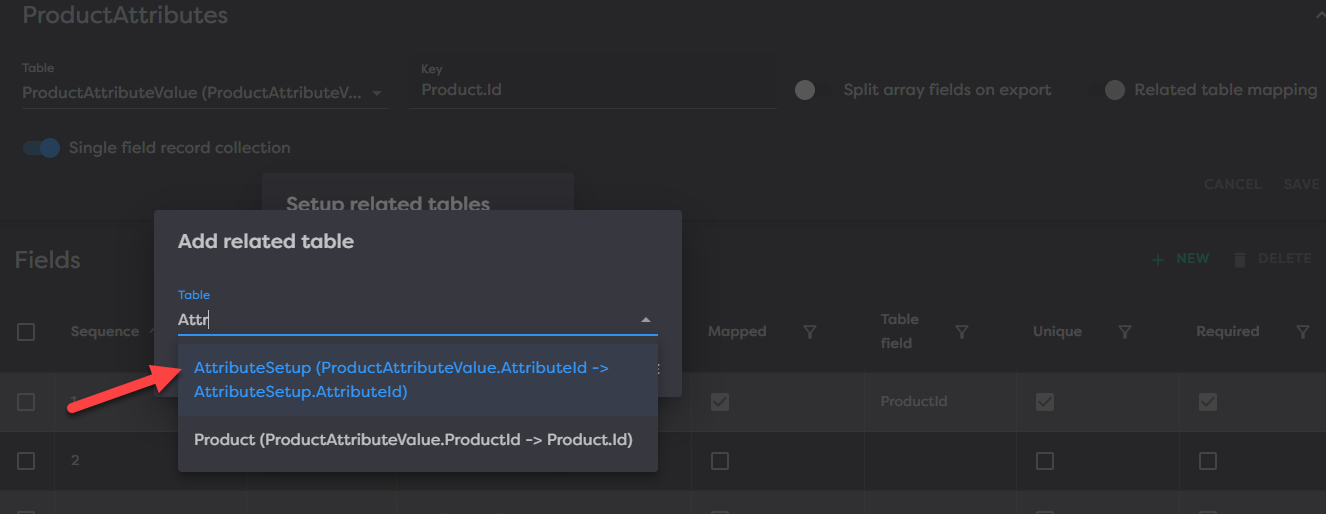
If you have already created all the Product Attributes you want to be brought in from the PIES file in the Catalog>Attributes>Attribute Setup section, then you can stop here. However, if there are attributes in the PIES file that do not already exist and you want them to be created upon the PIES import, you will want to setup a related table mapping.
To do this, click Setup Related Tables at the top right.

Next, set your related table to AttributeSetup and click Save.
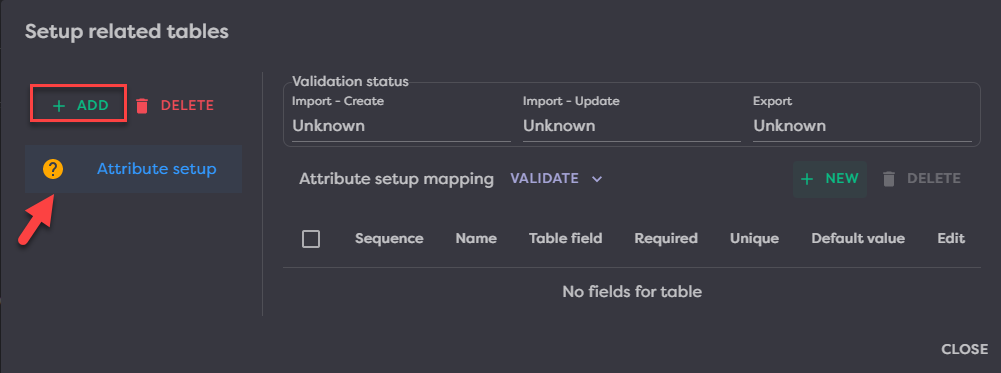
From here you will notice that there is a Question Mark icon next to the table name, this means that this related table has not been validated yet. After the mappings are complete, you can validate the table to ensure all required fields are mapped.
First, the mappings must be created by clicking +Add in the top left.
This related table is supposed to create any new attributes, so we must map any field that would be required during the attribute creation process. Those fields include:
- Attribute ID
- Data Type
- MultiValue
Add each mapping, your mappings should look similar to the below.
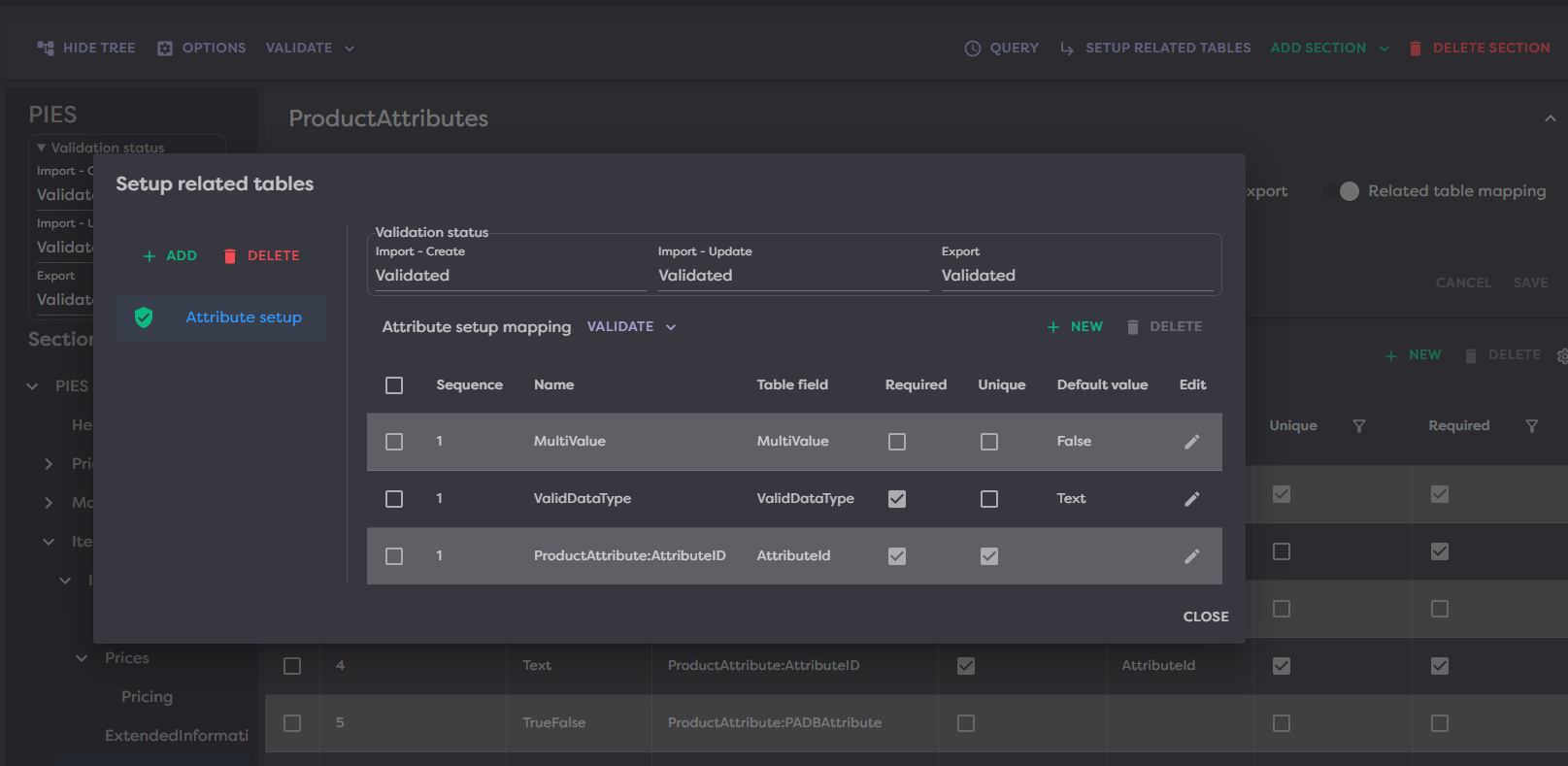
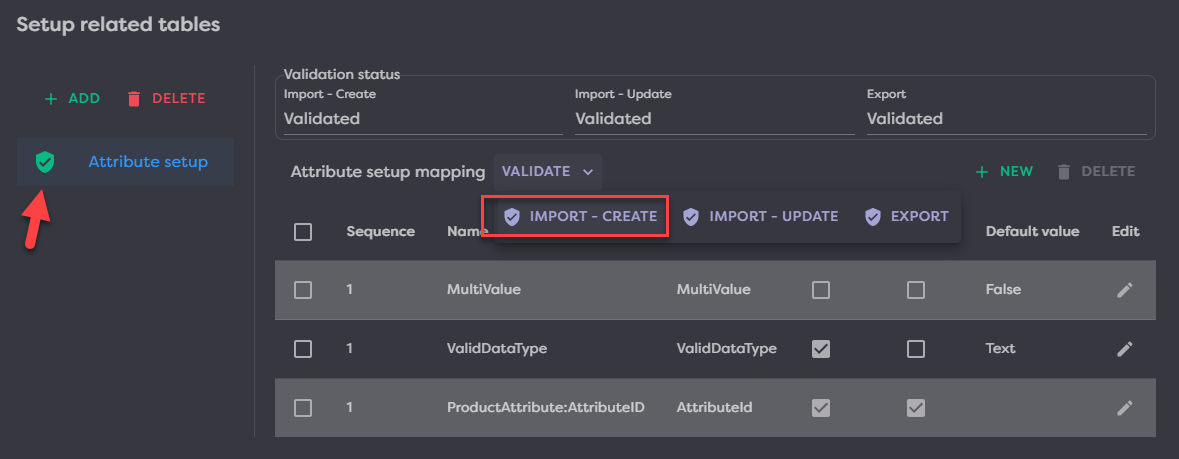
Now that all required fields are mapped, test the related table for validity by clicking the Validate>Import-Create button. If all required fields are mapped, you will get a success message and the question mark icon next the table name will turn to a checkmark badge icon as you see in the below picture. If validation fails, you will get error messages in the top right and must resolve, then validate again.
¶ Package
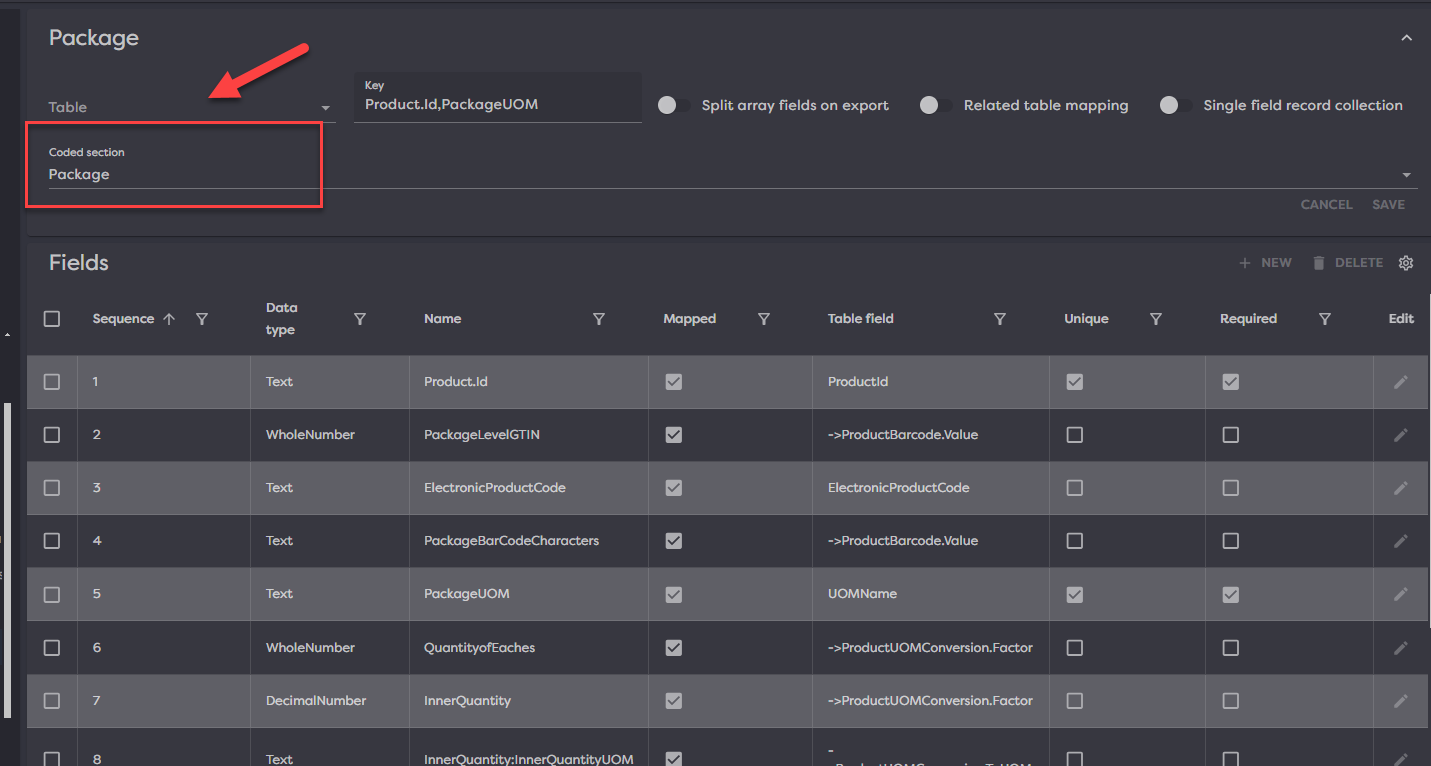
For the Package section, leave the Table blank, Choose “Package” from the Coded Section Dropdown, then click Save.
This will bring in all the standard PIES fields in this section so you will not need to individually map any other fields here.
¶ Flat Mapping
A flat template mapping means that you have an xlsx or csv file that has anywhere from a couple to many columns with different pieces of data you want to get into Product Desk.
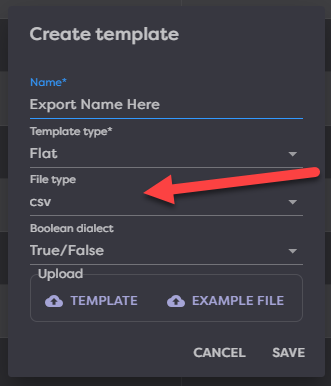
When setting up a new Flat template, you will get to choose between two file types, csv or xlsx. Choose the file type that matches your file you are trying to import.
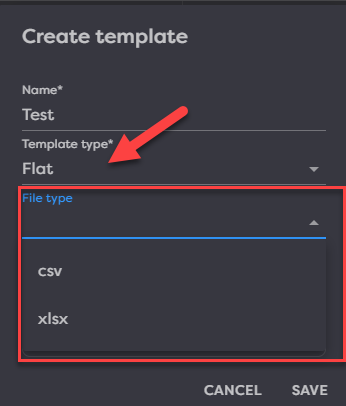
Once you have loaded your example file and hit Save then you can click into the template to edit.
¶ Import Groups
In the below example, I will be loading the top level categories of my category tree using groups. Here is what the spreadsheet looks like:
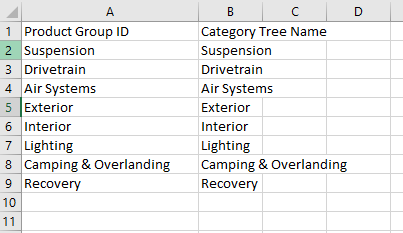
Here is what the template looks like once I click edit:
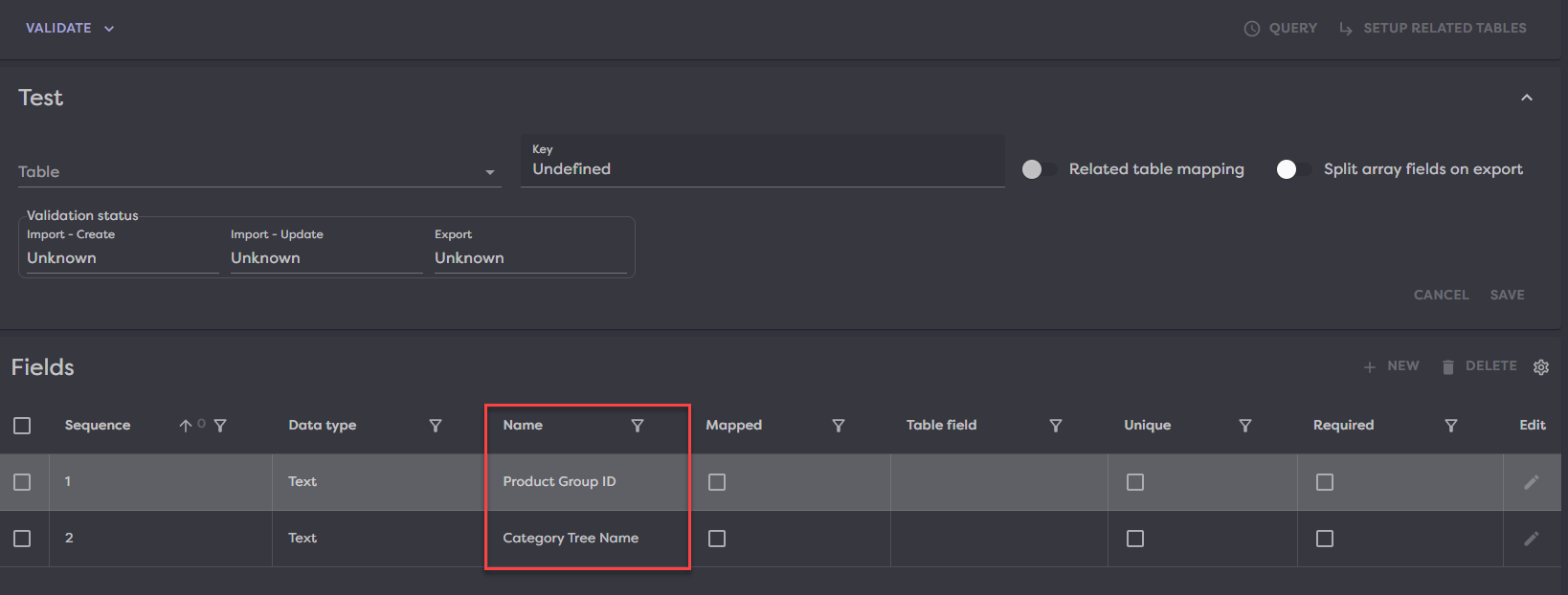
You will notice that the column headers you see in the spreadsheet are already fields in my template. Now all we need to do is map the fields to where they need to go in Product Desk.
First, we want to set the Table in the top left. This will determine what table (or section) of Product Desk we are importing to. Since I am trying to create categories, which are a type of Group in Product Desk, I will select ProductGroup as my table and then click Save.
Note: You MUST click save when you change anything in the template header for the change to take effect.
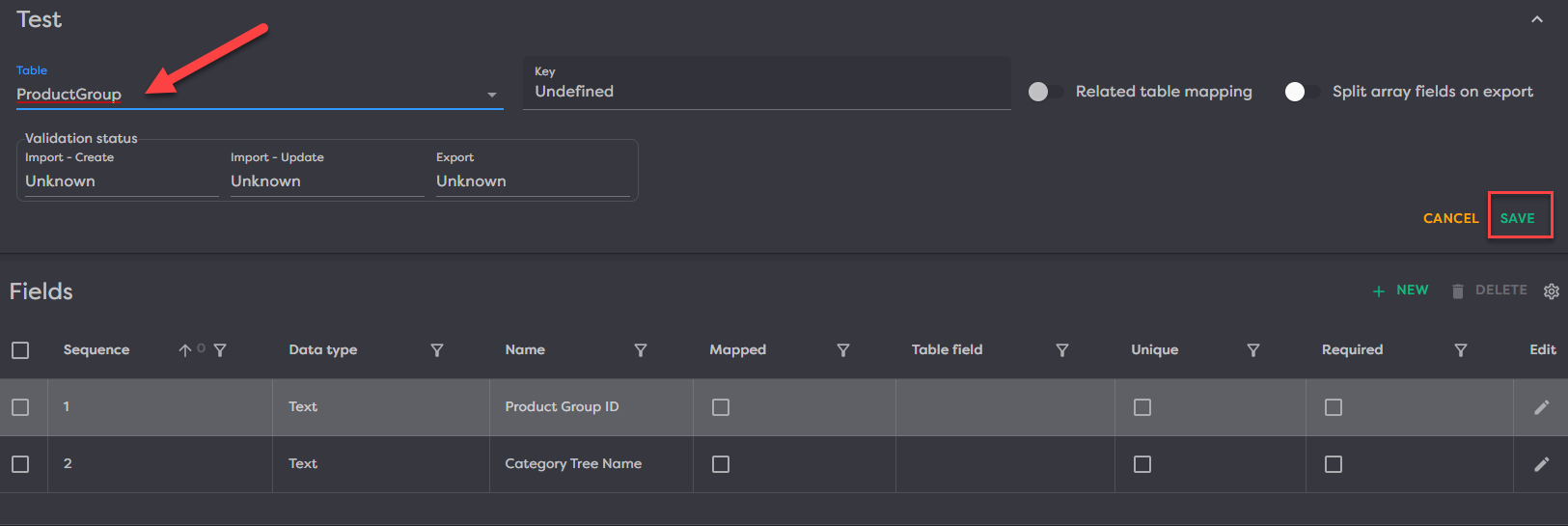
Now that we have selected the backing table and saved, we can map each field. In this case, I have two:
- Product Group ID
- Category Tree Name
To map, click the pencil icon to edit. From here, a setup field modal will open.
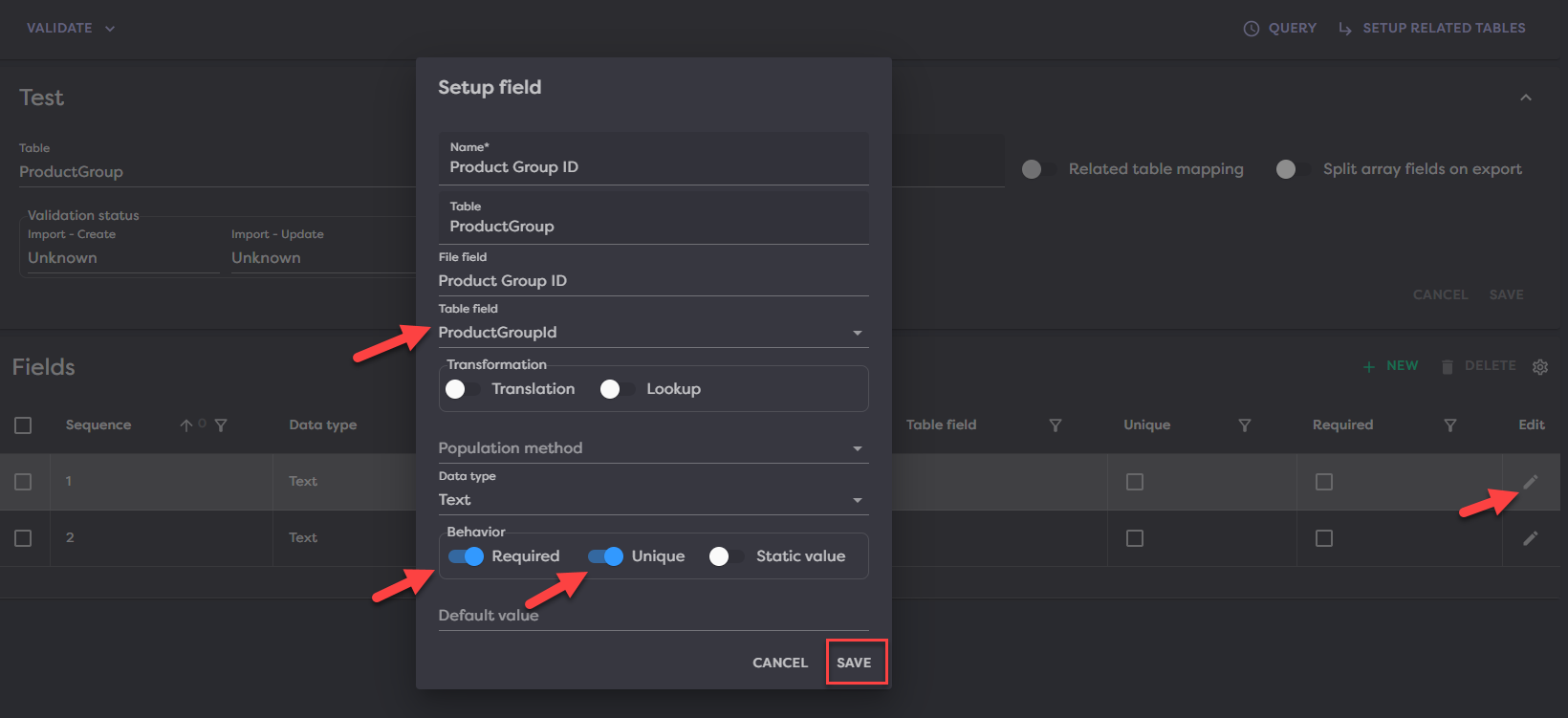
You must select the Table field (where in Product Desk does this information go) and the Behavior that needs to be followed when bringing the data in.
There are 3 different Behaviors:
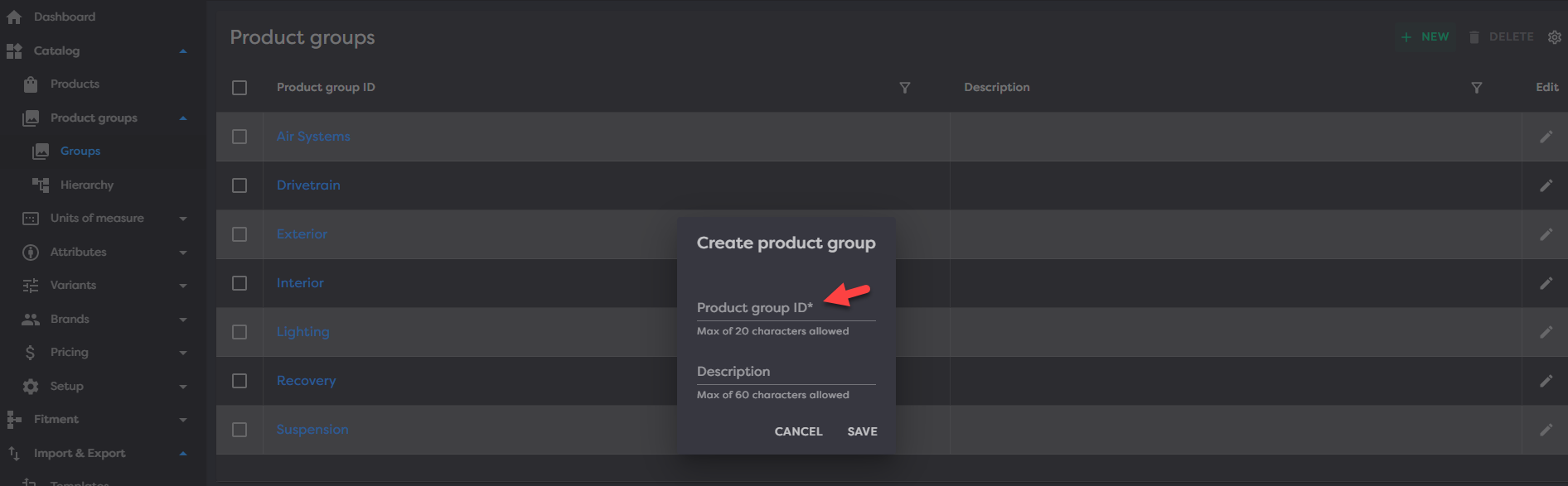
- Required - This is a required field when creating this information. You can check this by going into Product Desk and seeing what fields are required when manually creating the data. In this example, to create a new Product Group, the only thing required is Product group ID which I checked by going to Catalog>Product groups>Groups>Clicking New.
- Unique - This means that the field is part of the key and you have multiple to bring in. So in this case, I have many top level categories which I am identifying with the Product group ID, so this field needs to be unique in order for Product Desk to know it should bring in ALL of these it finds in the file and not just the first one.
- Static Value - This is a value that does not change.
My Product Group ID field setup will look like the below for this example:
After saving, you will notice that this field is check marked for being Mapped, Unique and Required as well as see the Table field selection we made.
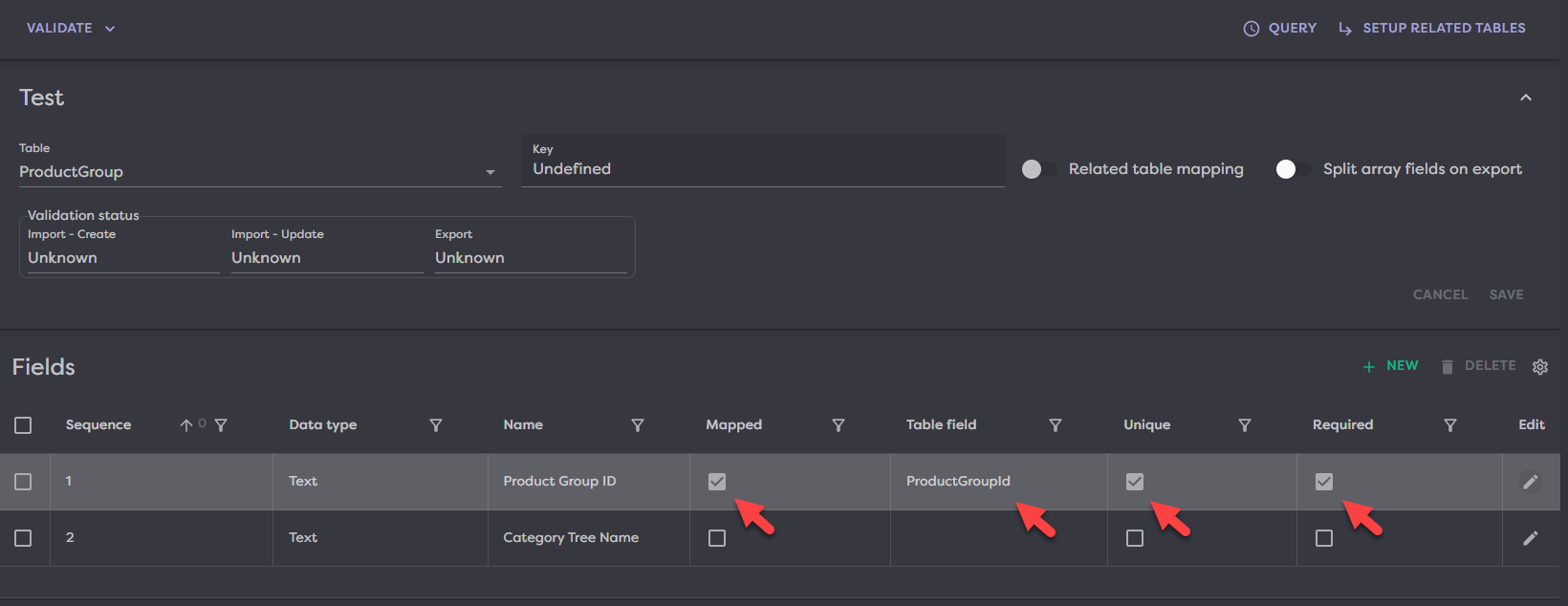
Repeat this exercise for all fields you want mapped. In this example, we only have one other field to map which is Category Tree Name.
Once all fields are mapped, go to the top left and validate your template. You have a few different validation options based on whether this template will be used to create new, update existing or export out of Product Desk.
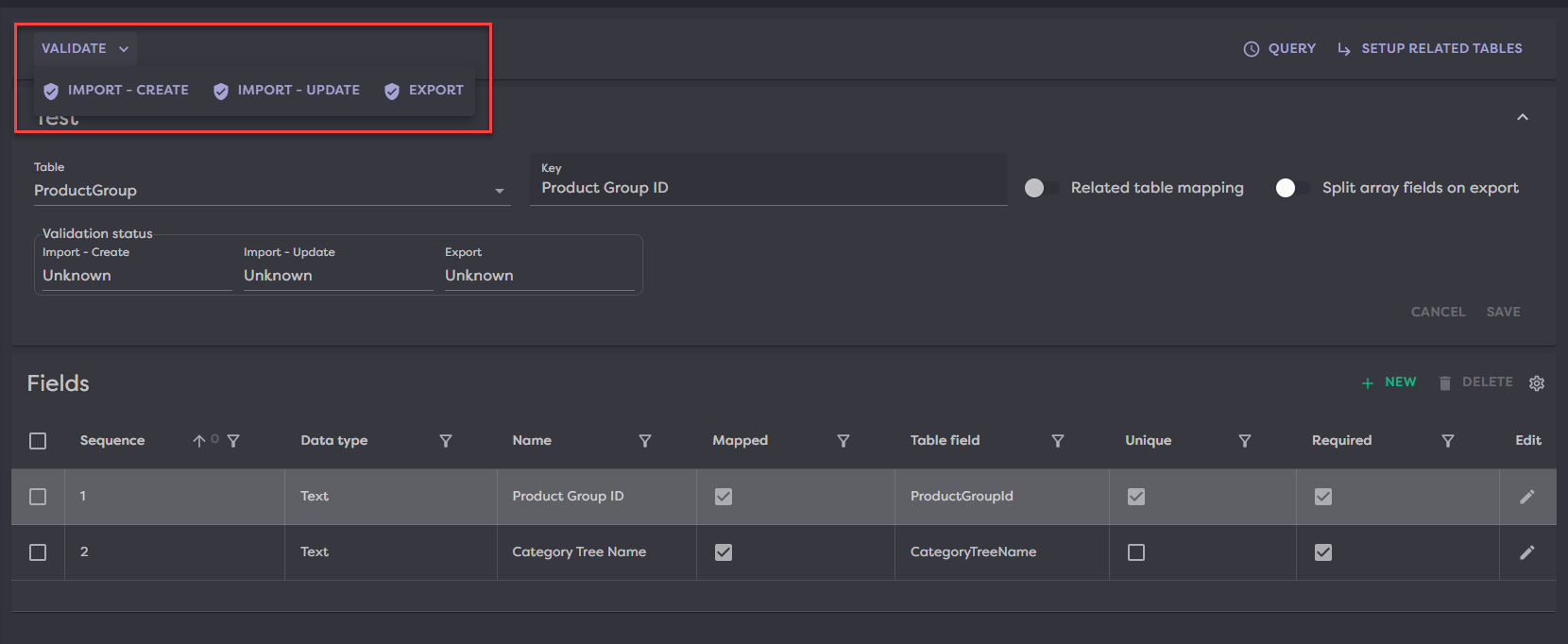
In our example, we are trying to create new top level categories so I will click Validate>Import-create to confirm my mappings are good. You will receive a success message in green in the top right if everything is good or a red error message if there are things missing or you need to fix. In this example, everything is mapped correctly.
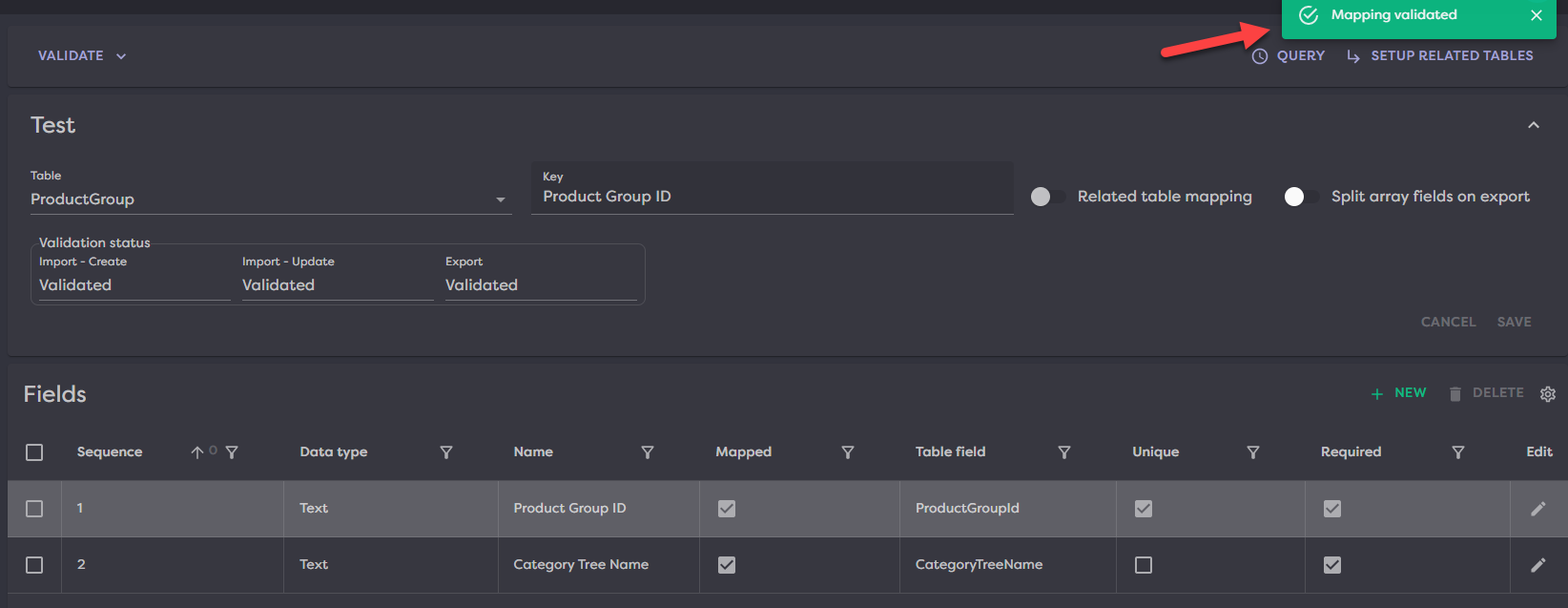
Now that we have validated our mappings, if we return to Import & Exports>Templates then we will see our Test template is available and has a validated message. We can now go to the Import section to use this template to import top level categories.

¶ Coded Mapping
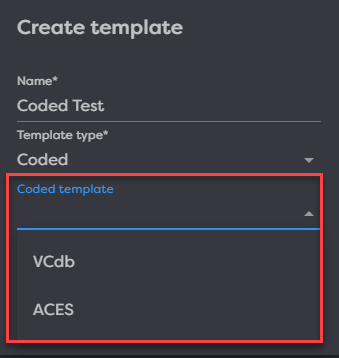
A coded template would be used if you were importing a VCdb or ACES file. Strabo will provide coded templates for these sections so you do not have to do additional mapping. Please reach out to our Support if your Product Desk instance does not already have this set up.
¶ Imports
To import, you must have a template set up to bring whatever data you are wanting it. You can learn more in Templates if you need help.
You can import with both xlsx and csv file types, the file type just has to match the template you are using.
¶ Exports
Exports work similarly to imports in that you must have a template created first to set what data fields you want to pull from Product Desk.
You can only export to a csv, so be sure to set your export template up with csv as the file type.
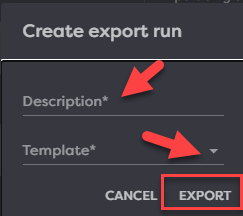
When ready to export, go to Export>New>Add Description>Select Template>Click Export.
From here, your export will run until it completes. You will know it is complete by checking the Processing Status column.
¶ Export Processing Status
There are 3 processing statuses, Pending, Completed or Failed.
¶ Processing Status: Pending
If processing status is pending, then export is still running. If the status hasn't changed for a couple of minutes, hit the refresh button in the top right to see an updated status.

¶ Processing Status: Complete
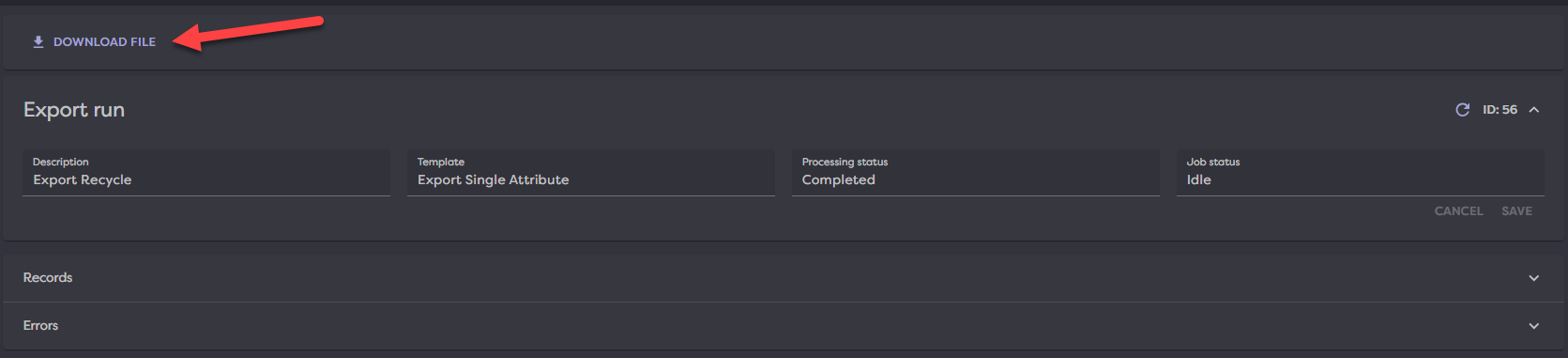
If processing status is complete, click into your export by selecting the ID.

Click Download File; csv will download to device.
¶ Processing Status: Failed
If processing status is Failed, then click into the export run and open the error logs.
¶ Channels
A Channel allows you to sync your data out to different places. In the example below, we will be setting up a BigCommerce sync.
¶ BigCommerce
Product Desk allows you to sync to as many BigCommerce stores, storefronts or other BigCommerce channels as you need. You simply configure each one in it's own Produce Desk Channel.
The sync can be triggered:
- Manually for a single product, or selection of products.
- This will run in the users session, giving them instant/direct feedback on the success
- Manually for the whole channel
- User can choose to sync all products, or only products with updates since the last sync
- Real-time sync
- Anytime a product is created or updated, it will be synced to BigCommerce
The last run timestamp for both the channel section, and each product is tracked and visible in the UI.
¶ Create Channel
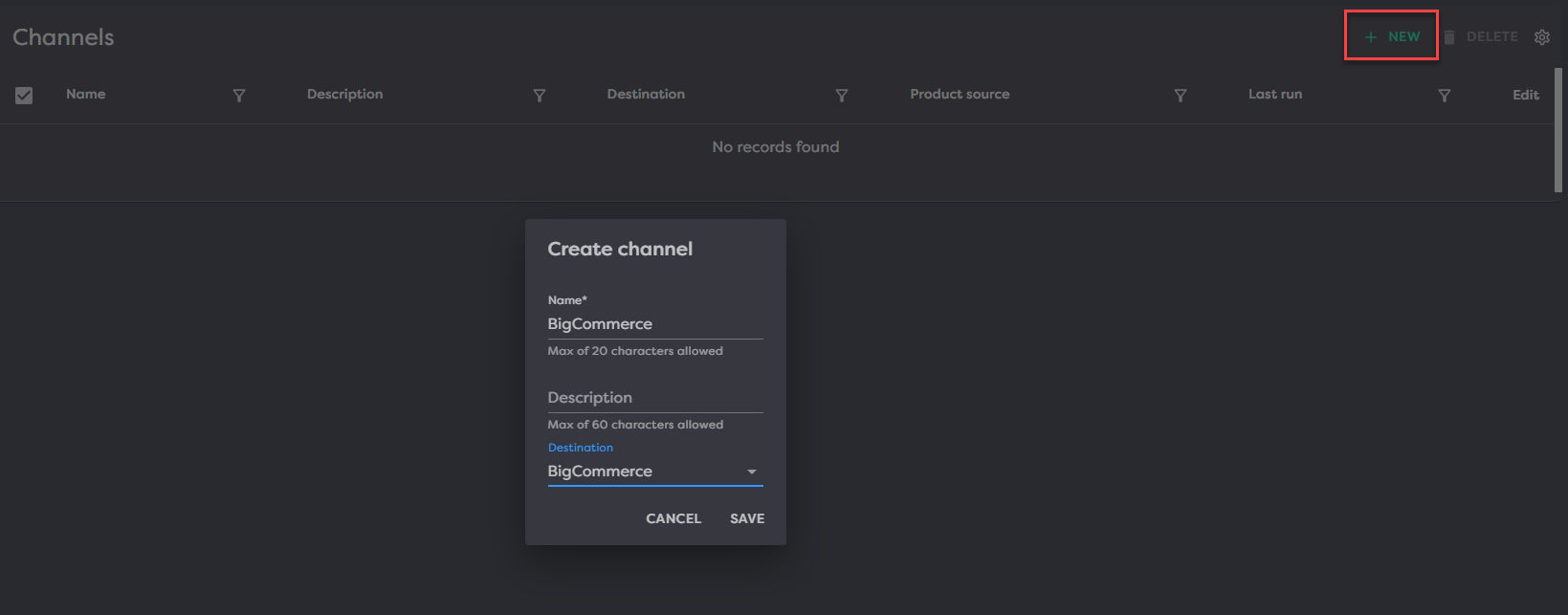
Go to Import & Export > Channels > New.
Enter your Channel Name, in this case we will use “BigCommerce”.
Use the dropdown to select your destination as BigCommerce. Note, the destination is as it sounds, and determines where your Product Desk data will go.
Click Save.
¶ Setup Channel
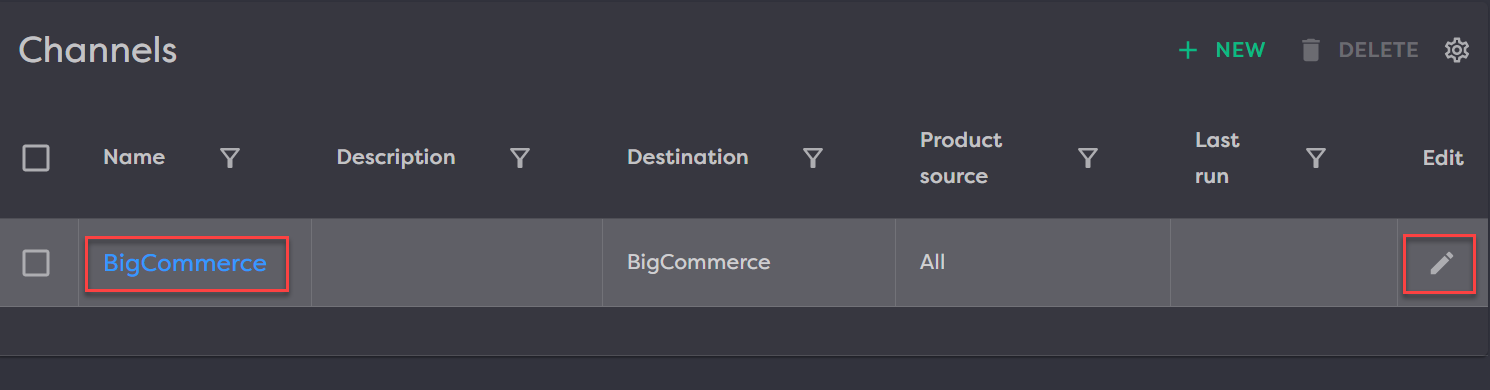
To edit a channel, you may click on the hyperlinked name, or the pencil icon to the right.
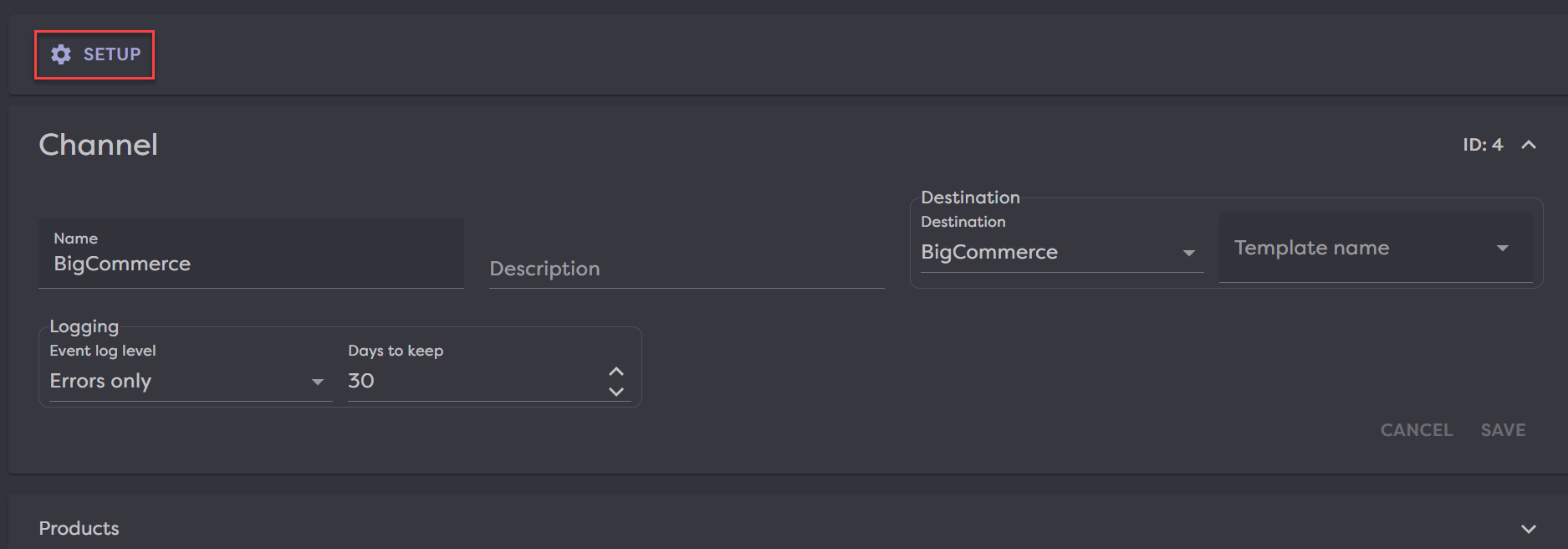
Now click Setup to configure all channel settings.
¶ Store Connection
Start by entering your BigCommerce store hash and access token, then hit Save.
Don't have this? Learn more about setting this up in your BigCommerce store with their step by step API Setup.
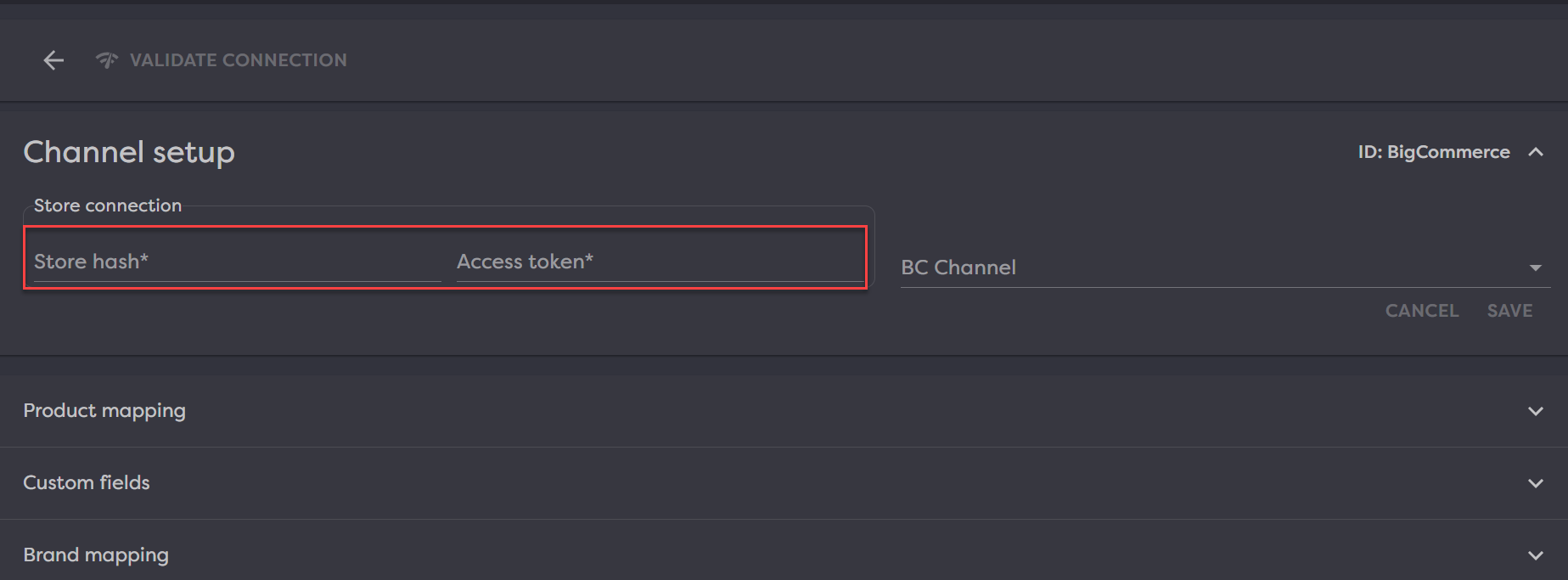
Choose your BC Channel from the dropdown and hit Save.

Click Validate Connection to confirm Product Desk is connected to your BigCommerce store properly. Look for this “Connection validated” confirmation in the top right.

Note: If you receive a red error message, check your hash and access token then Validate Connection again before proceeding.
¶ Product mapping
The product mapping section allows you to map to the default fields in BigCommerce.
There are a few fields that BigCommerce requires you to have on a product in order to sync a product in. These fields are Name, Type, Weight and Price.
Note, these fields are already indicated as required with the checkbox in the Required column. You will want to start by mapping these first. Click the pencil icon to edit.
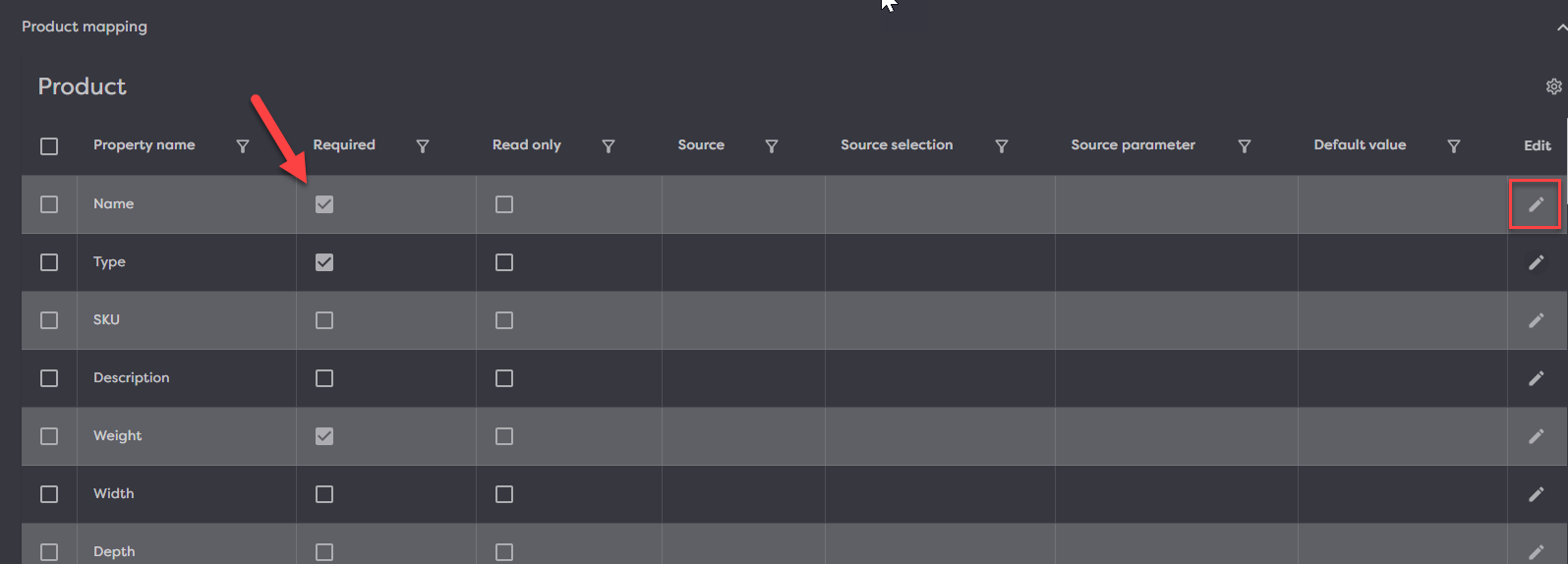
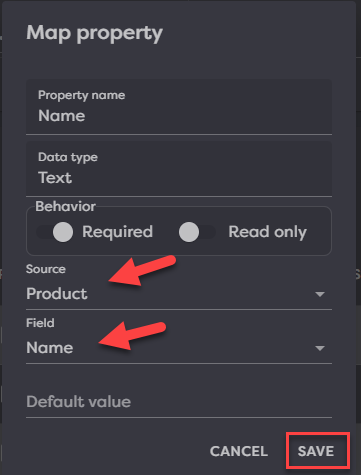
When mapping, you pick a source for your field or you can just set a default value.
For Name, we will pick a source. The source is where in Product Desk the information for this field lives. In the case of Name, it lives on the Product. Select Product from the Source dropdown and then select the field name of the value you want BigCommerce to use for the product name. In this case, we select Name. Then click Save.
For Type, we do not have a field in Product Desk that denotes this, so we will use a Default Value. Click the pencil icon to edit the Type field, then from the dropdown, select Physical or Digital depending on the kind of products you sell.
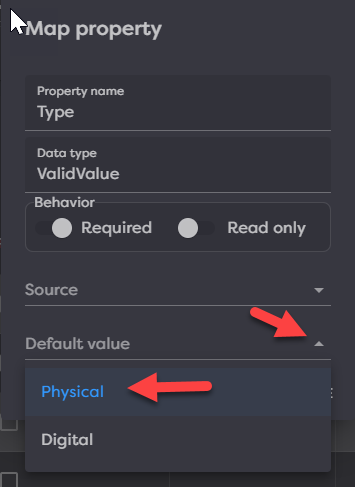
Note: You may also select a Source for a field AND set a default value. By doing this, you would ensure that IF a source for that product exists, it is pulled in. But if it does NOT, then the default value will be used. This is helpful for things like product weight where you need it to be set for calculating shipping charges but you may not have this information for all products.
Once all default required fields are set, go through and continue mapping any other fields you would like to be synced to BigCommerce.
¶ Custom fields
Custom fields can include anything you want to map to BigCommerce that isn't already a default BigCommerce field. These generally include informational pieces of information to display on the product display page or attributes you want to facet on in the search.
To add a custom field, click New and then add your custom field name and save. This is the name you would like to be displayed in BigCommerce front end.
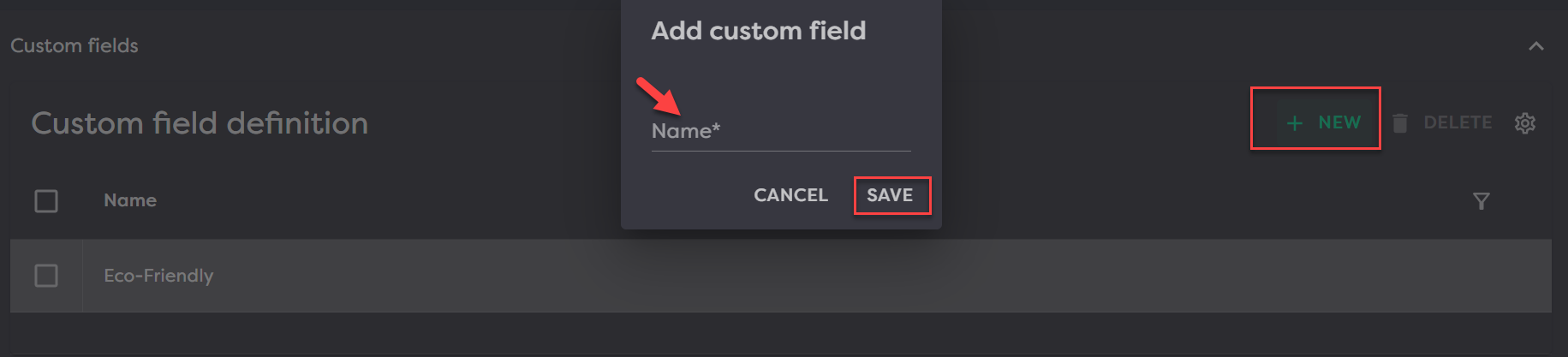
Once saved, you can go back up to the Product Mapping section and set up these fields to pull from the appropriate attributes in Product Desk.
¶ Brand mapping
Similar to products, Brands can be synced to BigCommerce as well.
Brand selection can be based on:
- All brands
- Brands with a specified owner
- Brands with a specified attribute and value.
Brands support the same option for keeping the list of brands in the channel up to date.
The sync options for brands are the same as for products (manual per brand, manual for the channel, real-time).
Events for the brand sync will show up in the events section along with product sync events.
¶ Category mapping
In the Category mapping section, the only required field to map is Name. But there are several other fields you can map to which include:
- Name (required)
- View
- ImageUrl
- IsVisible
- PageTitle
- SortOrder
- LayoutFile
- Description
- SearchKeywords
- MetaDescription
- DefaultProductSort
Want to learn more about what these fields do in BigCommerce? Check out there category support article here.
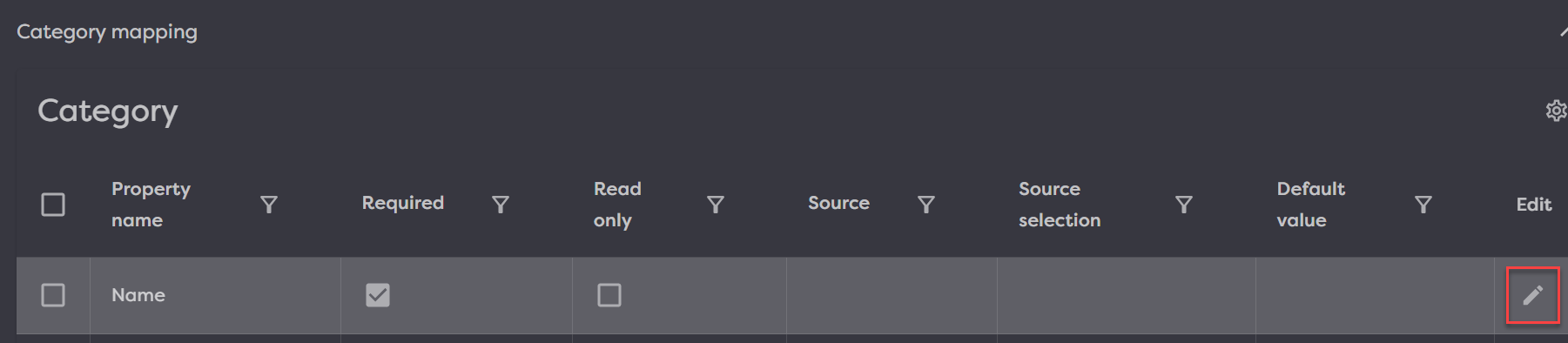
To map these fields, click the pencil icon to edit.
Then fill in the Source and Source selection fields. In many cases, you will be picking ProductGroup for Source and ProductGroupId for source selection, then save.
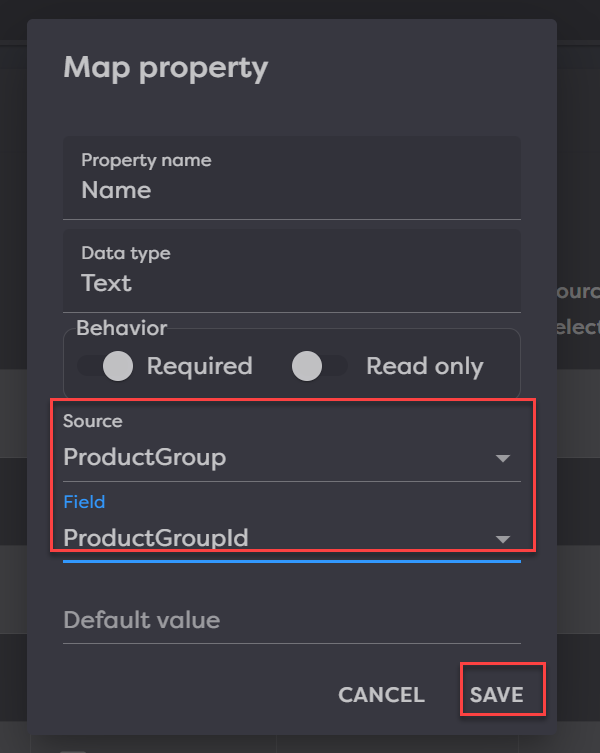
Continue filling out the rest of your desired category fields in this manner.
¶ Channel Options
In the Channel, you will find the options to set your destination, determine how to log events and find the sync controls for products, brands and categories.
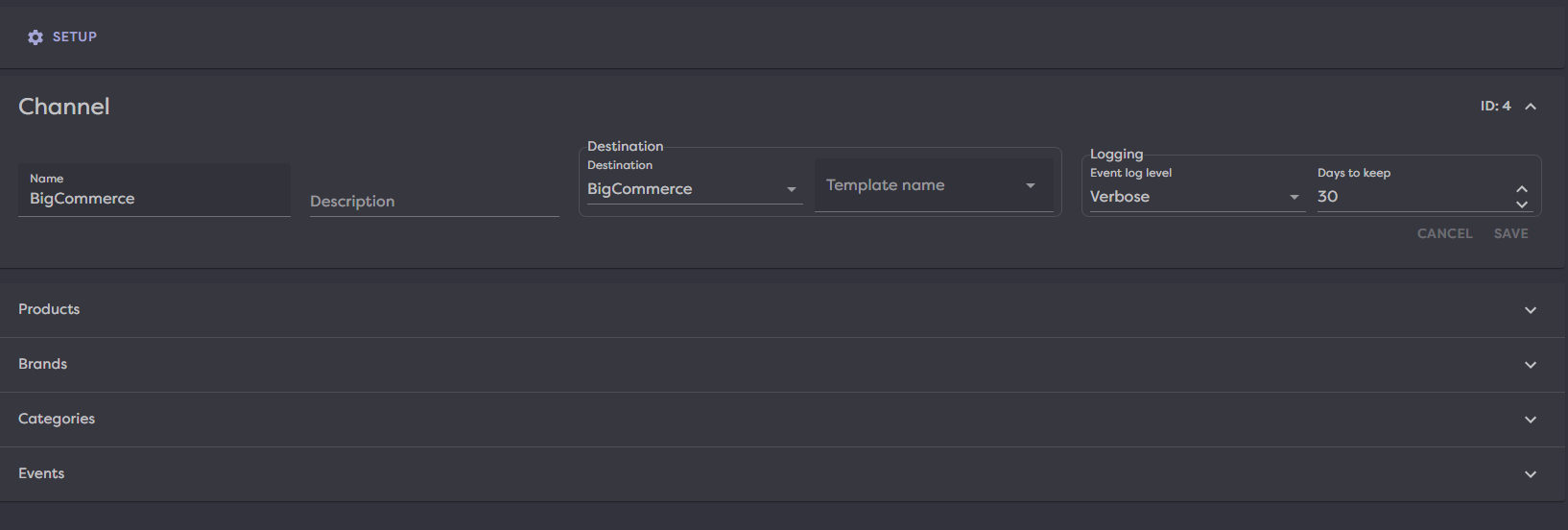
¶ Products sync
In the channel, products can be populated based on:
- All products
- All products with a specified brand
- All products in a specified group
- All products with a specific group and attribute
Optionally products in the channel can be populated automatically (when a product is created, assigned to a brand, etc.).
The sync can be triggered:
- Manually for a single product, or selection of products.
- This will run in the users session, giving them instant/direct feedback on the success
- Manually for the whole channel
- User can choose to sync all products, or only products with updates since the last sync
- Real-time sync
- Anytime a product is created or updated, it will be synced to BigCommerce
The last run timestamp for both the channel section, and each product is tracked and visible in the UI.
¶ Brands Sync
Similar to products, Brands can be synced to BigCommerce as well.
Brand selection can be based on:
- All brands
- Brands with a specified owner
- Brands with a specified attribute and value.
Choose this here, configure your options and then hit SAVE.
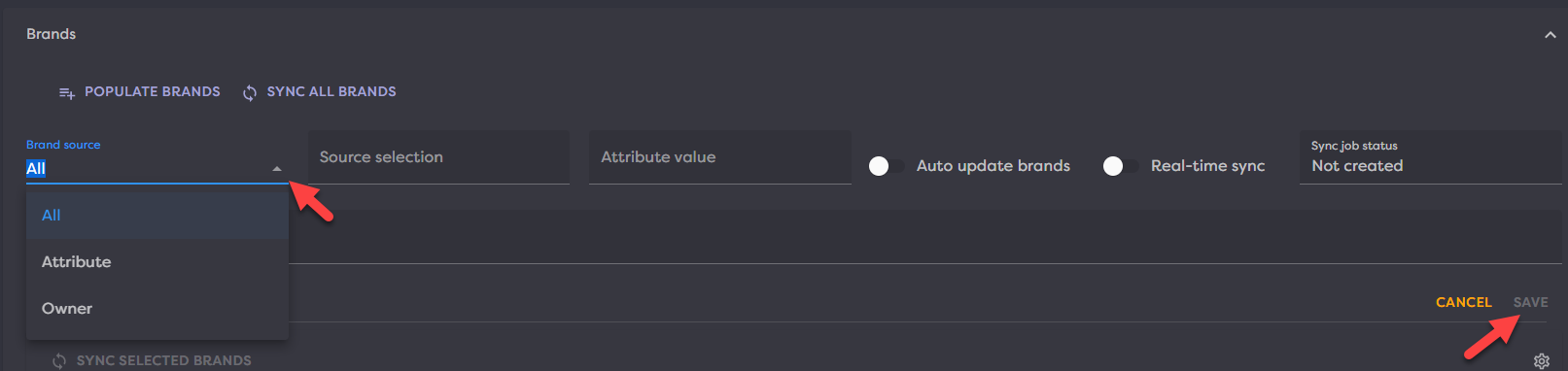
Brands support the same option for keeping the list of brands in the channel up to date. Control that with these toggles.
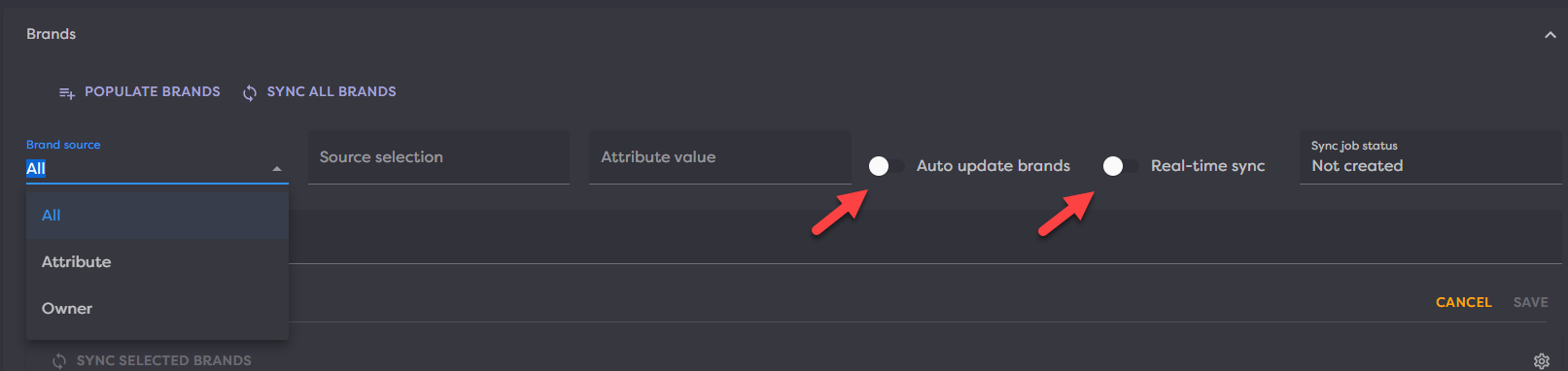
The sync options for brands are the same as for products (manual per brand, manual for the channel, real-time).
If you only want to sync certain brands, you can use the checkboxes to select those brands and then hit Sync Selected Brands.

Events for the brand sync will show up in the events section along with product sync events.
¶ Categories Sync
¶ Events
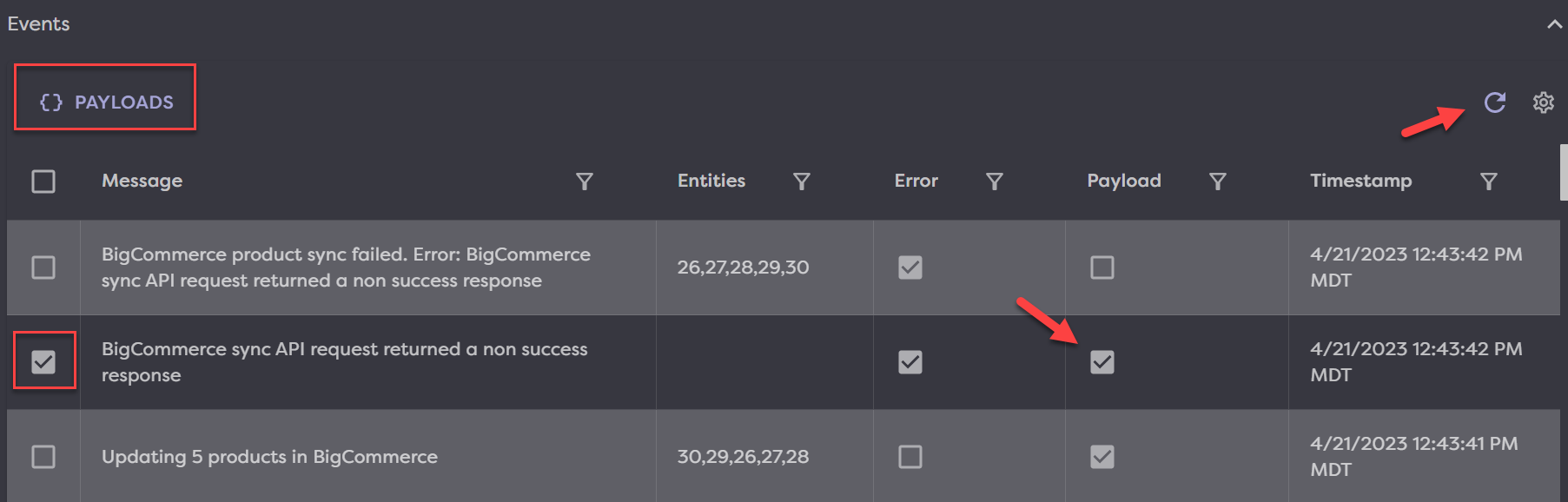
In the Events section, users can see all events/api calls (if log level is set to Verbose), or errors if log level is set to errors only. This includes both the request and response payloads.
If an error has a payload, then the Payload column will have it's box checkmarked. Select that line item then click Payloads in the top left of the table. You can also refresh your events by clicking the rotating arrow in the top right of the table.